LFR Maps – Finished products

Amazingly enough, I think I’m now ready for the Living Forgotten Realms game that I’ll be running in three weeks (WATE1-1 Heirloom), at least in terms of putting together the materials.  I blogged yesterday about the tokens I’ve created for the enemies and the day before about the maps that I drew in MapTool.

To bring things full circle, I thought I’d share the finished map files in all three forms:

I’m excited about the prospect of running this adventure now!  If our in-person game on Monday runs out of prepared material (unlikely, but you never know), maybe I’ll bust this out as an impromptu game.  More likely, I’ll ask if we can run it some future weekend before I run it for real.

Living Forgotten Realms DM Preparation – Maps

As I mentioned in my last post, I’ll be a first-time DM for a Living Forgotten Realms (LFR) session at my local store on July 24, 2010.  I’ve gotten the adventure module (WATE1-1 Heirloom) and read through it once, which is a good start.  The things I haven’t been certain about are what to do about maps and what to do about tokens.  I’m pretty sure I’ll follow Ismael_DM’s suggestion in the comments of using the tutorial on Newbie DM’s blog to make flat tokens using metal washers.  More on that as I actually give it a shot.  (Thanks for the tip, Ismael_DM!)

As for maps, I’m pretty sure I’m going to stick with what I know: MapTool! While I’d love to set up a projector with my laptop to project a MapTool screen onto the tabletop (and there is a person at the local store who does exactly this), I’m not ready to lay out the cash required to build that sort of thing.

I’m pretty sure, though, that I can build my maps in MapTool and then print them out as “posters” to put on the table for my players to use.  DM Samuel has talked on his blog about doing this, building the maps in a program called GridMapper (which I probably would have loved a few weeks ago before I learned how to really use MapTool) and then printing them out to scale using a program called PosteRazor.  I haven’t tried the printing part yet, but I figured I’d start by building the maps in MapTool.  Printing can come later.

There are three combat encounters in the module I’ll be running (no real spoilers here).  There’s a battle outside of a random inn on a random street, a battle inside a shop and the room beneath it, and a battle that can take place either in a room in an inn, next to a stable, or on the city streets depending on what has happened earlier in the adventure.

The adventure describes how to build each encounter area using Dungeon Tiles.  Now, I don’t have any Dungeon Tiles myself, but Wizards of the Coast has a program called Dungeon Tiles Mapper that you can download for free and which contains images for a bunch of different tiles (not all of them, but a good variety).  Combining that with the big MapTool image download that I have, I was able to recreate the maps pretty well (in my humble opinion).  In some cases I tried to be as faithful as possible to the original, but there were some cases where I decided to make my own improvements.

First, I created a map that serves as both the inn exterior for the first battle as well as for the last battle (the downstairs part of the inn).  I used a texture to paint the cobblestone streets, a Dungeon Tile image for the inn itself, a stairs object from the big MapTool download and a roof object from that same download to represent the building next door.Inn Exterior

Next, I created the main room of the shop from the second encounter.  This was dead simple – one Dungeon Tile image.

Shop Interior

After that, I created the hideout beneath the shop.  This one was much more involved.  I used some Dungeon Tiles for the spiral staircase, the blue rune, the wooden stairs and the trap door.  I used some flooring from the Dungeon Tiles to paint the stone floor as well as the wooden platform floor.  I used images from the MapTool download for everything else (tables, bookshelves, chair, chest).  I think it turned out really nicely.

Hideout

Next up was the room in the inn.  Nothing here was from Dungeon Tiles.  The stairs, beds and windows were from the MapTool download and the floors and walls were painted using various wood textures from that download.

Inn Room

Finally, the exterior of the stable.  It’s a lot like the inn exterior with the streets and the roof.  The horse and cart came from the big MapTool download.

Stable Exterior

My next task will be to try to print these out using the correct scale in PosteRazor.  Wish me luck!  And as always, I’d love to hear your feedback, whether about the maps themselves or about the general idea of printing these out to use at the table (probably on card stock).

MapTool campaign frameworks

After I had done a lot of work to start building macros for my D&D game that I’m running in MapTool, I discovered something – it’s not necessary to reinvent the wheel if you don’t want to.  It turns out that a number of people on the MapTool forums have created what are known as campaign frameworks.

A campaign framework is a work of art.  It’s a MapTool campaign file that contains within it everything you need to run a campaign under a given rule set (D&D Fourth Edition, d20 System, as well as other RPGs).  The particular framework I’ve played around with is from a MapTool forum user called Rumble.  His framework for D&D 4th Edition is in this post.

The framework is basically a campaign template.  If you want to start a new campaign, you start with the template file.  When you open the file, you’ll see something like this:

Rumble FrameworkWhat you see here is several pre-made tokens on the top part of the screen, some campaign macros (including those that will let you import character or monster info), and some macros for the sample PC token that’s selected.  The campaign file has an extensive set of properties to keep track of the sort of things my properties do and then some.  For instance, I hadn’t thought of keeping track of action points or experience points in the character sheet, but this property set does it.

Furthermore, the macros that are built in for both PC and monster tokens are all-encompassing and way cool.  They include everything I’ve done (hit point management, attack powers, skills) as well a bunch of things I haven’t done (delaying one’s turn, pulling up a formatted character sheet and power cards).  There are even macros to make editing the character stats easier, rather than having to directly fiddle around with properties.  The attack macros take into account who the target is, figure out their defenses, establish whether the attack hits or not, and so on.  It’s very, very detailed, and from what I understand it all works!

So, I learned that I don’t have to write all of these macros from scratch – others have done it for me.  Macro-writing over, right?

Nope.

See, I LIKE writing macros!  I’m not a professional programmer, but I’m pretty good at programming.  When it’s for a hobby, it’s something I just enjoy doing.  Plus, I like the idea of being able to customize my macros for my players.

Now, I would be foolish if I completely ignored the existence of excellent MapTool frameworks like Rumble’s.  If I’m having trouble with my own macros, I can see how Rumble implemented something.  I’ll certainly take inspiration from some of his ideas (such as tracking XP and action points).  But I don’t feel like using a pre-packaged setup like this because then I would deprive myself of the fun of discovering how to write my own MapTool macros.

All that said, if you’re not into the idea of writing your own macros for the pleasure of writing them and you just want a bunch of macros that work for your D&D 4e game, start your campaign from a template like this one.  There are lots of others on the MapTool forum for a variety of games, and they look fantastic to me.  I love the MapTool community!

MapTool Macros – Damage and healing

Edit 7/19/2010: Since I first wrote this post, I have learned more about MapTool macros, and you can find the improved information at this post.  However, I’ve left the original post below for posterity – and as an example of how to learn how to improve your macro writing, rather than just giving the finished product.

During our first actual gaming session with MapTool, I was pleasantly surprised to discover that my players liked keeping track of their characters’ hit points within the program, right on the character sheet that pops up whenever they would mouse over their character’s token.  They did this despite the fact that changing their HP involved double-clicking the token, navigating to the Properties tab of the Edit Token dialog, deleting the current HitPoints value and entering the new value.

Given that they like keeping track of HP in MapTool, I figured the least I could do would be to make it easier for them.  I wanted to create a button that would let them decrease their HP and another button that would let them heal.  And while I COULD have stopped there, I got into it and wanted to make this even slicker.

Before I could put the new macros into action, I had to edit my characters’ properties.  I needed the MaxHP value (so that healing couldn’t take the character above it).  And while I didn’t technically NEED the Bloodied value to be on the character sheet (macros could calculate it based on MaxHP), I discovered that MapTool will let you specify factors that are derived from other factors.  Here are the properties I now use for the Health section of my characters’ stat sheets:

Health properties

*@—–HealthStats—–:-
*@HitPoints:10
*@TempHP:0
*@MaxHP:10
@BloodiedHP:{FLOOR(MaxHP/2)}
*@SurgesLeft:6
*@SurgeValue:{FLOOR(MaxHP/4)}
@DailySurges:6

Note that the * means that the variable will be displayed on the mouse-over character sheet and the @ means that it will be visible only by the token’s owner and the GM.  (Side note: This means that my players won’t be able to see stats for monsters, since they don’t own the monster tokens – this is good.)  The header line (HealthStats) is technically a property with an assigned value of “-“, which I’ve added just for looks on the pop-up sheet (there’s a separate section now for defenses and so on).  SurgeValue isn’t used in my macros, but I wanted it on the sheet so my players could look it up easily whenever they spend a surge.

These macros ended up getting more complex than I intended for them to be, so I’ll just put the finished versions below and then discuss each one.  I’ll start with the macro that adds temporary hit points, as it’s the simplest.

Temporary hit points macro

[h: TempsAdded=AmountOfTempHPGained]
[h: CurTemps=getProperty(“TempHP”)]

[if(CurTemps>=TempsAdded), CODE:
{Already has [CurTemps] temporary hit points, so no temps were  added.};
{[h: setProperty(“TempHP”,TempsAdded)]
Now has [TempsAdded] temporary hit points.}
]

This macro first creates a prompt that asks the player to enter a value for AmountOfTempHPGained.  There are ways using the INPUT command to make this look prettier, but I haven’t bothered with them yet.  Once the player has said how many temps they’re gaining (let’s say 3), that’s stored as TempsAdded.  The macro finds out how many temps the player has at the moment (CurTemps) and then checks to see if the new temps are greater than the old.  Since temporary hit points don’t stack in D&D 4e (if you have 5 and gain 3 more, you just have 5, not 8), the macro simply prints a “no new temps for you” message if they already have at least as many as they’re adding.  Otherwise, it sets the TempHP value on the character sheet to the amount of temps that were added and tells the player the new total.  Not too hard.

Next up is the macro to gain actual hit points – the healing macro.

Healing macro

[h: Heal=AmountOfHPGained]
[h: CurHP=getProperty(“HitPoints”)]
[h, if(CurHP>=0), CODE:
{[NewHP=CurHP+Heal]};
{[NewHP=Heal]}
]

[h, if(NewHP>getProperty(“MaxHP”)), CODE:
{[NewHP=MaxHP]
[Heal=MaxHP-CurHP]};{}
]

[h: setProperty(“HitPoints”,NewHP)]
[h: Bloodied=getProperty(“BloodiedHP”)]

Gains [Heal] hit points and is at <b>[NewHP]</b> hit points.

[if(NewHP>Bloodied && CurHP<=Bloodied && CurHP>0), CODE:
{She is no longer bloodied.
[h: setState(“Bloodied”,0)]};
{}
]
[if(CurHP<=0 && NewHP<=Bloodied), CODE:
{She is no longer dying, but she is still bloodied.
[h: setState(“Unconscious”,0)]};
{}
]
[if(CurHP<=0 && NewHP>Bloodied), CODE:
{She is no longer dying, and she is no longer bloodied.
[h: setState(“Unconscious”,0)]
[h: setState(“Bloodied”,0)]};
{}
]

[if(NewHP==MaxHP), CODE: {She is at maximum health.}; {}]

This one starts like the last one, popping up an input box that asks the player to say how many hit points they’re gaining, saving that number as Heal.  It then gets the character’s current HP.

  • If current HP is greater than zero, the macro sets the player’s HP to the current HP plus the healed amount.
  • If current HP is less than zero, the macro follows D&D 4e rules by setting the player’s life total to the healed amount (healing starting from zero rather than from a negative number).

The macro also checks to see if the healing would put the character’s hit points at or above their maximum hit points; if so, it only heals up to the maximum.  It prints a message with the amount of HP healed and the new HP total.

The macro also gets the PC’s bloodied value from the character sheet and prints out some additional messages depending on where the character started with HP and where they ended up.

  • If the PC was conscious but bloodied and is not bloodied any more, the macro prints a message saying as much and then removes the “Bloodied” state from the character (which shows up in my campaign as a little red icon in the corner of the token).
  • If the PC started off dying and ended up not dying but still bloodied, the macro says as much and then removes the “Unconscious” state from the character (which shows up in my campaign as a gray X across the character’s portrait).
  • If the PC started off dying and ended up unbloodied, the macro says so and removes both the “Bloodied” and “Unconscious” states from the character.

Finally, if the PC ends up at maximum hit points, the macro says that, too.  This is helpful in cases where the amount healed is less than the amount entered because the full amount would have put the PC above their max HP.  This way, the player understands what happened.

Now for the damage macro.  I originally wrote this one before the healing macros, and I forgot about temporary hit points when I wrote it, so it had to be re-done.  This has made it rather complex in appearance.

Damage macro

[h: Dmg=AmountOfDamageTaken]
[h: CurHP=getProperty(“HitPoints”)]
[h: CurTemps=getProperty(“TempHP”)]
[h: Bloodied=getProperty(“BloodiedHP”)]
[h: Dead=-1*Bloodied]

[if(CurTemps==0),CODE:
{
[h: NewHP=CurHP-Dmg]
Takes [Dmg] damage and is at <b>[NewHP]</b> hit points.
[h: setProperty(“HitPoints”,NewHP)]
};
{
[if(Dmg<=CurTemps), CODE:
{
[h: setProperty(“TempHP”,CurTemps-Dmg)]
[h: NewHP=CurHP]
Takes [Dmg] damage, losing [Dmg] temporary hit points.  She how has [CurTemps-Dmg] temporary hit points and <b>[CurHP]</b> regular hit points.
};
{
[h: HPDmg=Dmg-CurTemps]
[h: NewHP=CurHP-HPDmg]
[h: setProperty(“TempHP”,0)]
[h: setProperty(“HitPoints”,CurHP-HPDmg)]
Takes [Dmg] damage, losing [CurTemps] temporary hit points and [HPDmg] regular hit points.  She now has no temporary hit points and <b>[NewHP]</b> regular hit points.
}
]
}
]

[if(NewHP<=Bloodied && CurHP>Bloodied && NewHP>0), CODE:
{She becomes bloodied.
[h: setState(“Bloodied”,1)]};
{}
]

[if(NewHP<=0 && NewHP>Dead && CurHP>0), CODE:
{She is now dying.
[h: setState(“Unconscious”,1)]};
{}
]

[if(NewHP<Dead), CODE:
{She is dead.
[h: setAllStates(0)]
[h: setState(“Dead”,1)]};
{}
]

All right, let’s break this down.  This macro starts by asking the player how much damage they’re taking.  It pulls in the current hit points, current temporary hit points and bloodied value from the character sheet and calculates the “Dead” HP value (the negative of the bloodied value).  The code then branches.

  • If the player doesn’t have any temps right now, the new HP is set to the old HP minus the damage taken, and the player is told how much damage is taken and where their hit points stand now.
  • If the player does have temporary hit points, the macro checks to see whether they’ll all be used up by the damage or not.
  • If they have more temps than they’re taking in damage, the damage is subtracted from the temps and the player is told how much damage they took, how many temps they have left and what their total HP is.
  • If the damage is enough to eat all of the temps and then some, the temps are wiped out, the remainder is subtracted from the actual hit points, and a message tells the player what happened.

Now the branches are done (the player has gotten a message telling them how much damage they took and where their HP situation is now).  The rest of the code checks to see if the character went from unbloodied to bloodied, conscious to unconscious, or alive to dead.  If any of those happen, the proper states are set and the proper messages are sent to the text window.

Finally, I realized that players will probably want to keep track of their healing surges as well, so I created a simple little macro to let them remove a surge from their total (note that actually gaining hit points is handled independently through the healing macro above).  Having done that, I figured I might as well create a macro to let them add a surge back (useful in case they click the “spend a surge” button by accident or take an extended rest).  The code for these is as follows:

Remove a surge:

[h: CurSurges=getProperty(“SurgesLeft”)]

[if(CurSurges>0), CODE:
{[h: setProperty(“SurgesLeft”,CurSurges-1)]
Spends 1 healing surge.  She has [CurSurges-1] [if(CurSurges!=2, “surges”, “surge”)] remaining.
};
{Has no healing surges left to spend.}
]

Regain a surge:

[h: CurSurges=getProperty(“SurgesLeft”)]

[if(CurSurges<getProperty(“DailySurges”)), CODE:
{[h: setProperty(“SurgesLeft”,CurSurges+1)]
Regains 1 healing surge.  She has [CurSurges+1] [if(CurSurges!=0, “surges”, “surge”)] remaining.
};
{Already has her full daily allotment of [CurSurges] healing surges.}
]

You’ll note that these macros do a couple of minorly fancy things.  First, they check to make sure that the player either has a surge left to spend or isn’t already at their maximum surge value on the adding side.  Second, they appropriately handle the singular/plural on surge/surges.  I didn’t bother with this on the hit points macro, so there you can see things like “Violet: Takes 10 damage and is at 1 hit points.”  Annoying, but not worth fixing because the code is messy enough already!

In case you were wondering, yes, I did use feminine pronouns throughout these macros because all three of my players are using female characters (despite the fact that one player is male).  If this were not the case, I could:

  • Awkwardly switch to gender-neutral pronouns
  • Edit the pronouns in the macros independently for each character
  • Create a property that indicates whether the character is male or female and then edits the pronouns appropriately

If I were doing this for broad distribution, I’d take the latter approach.  In my small game, though, I’ll probably go with the second approach if a male character ever comes up.

I’ve stored these macros in a package (along with skill checks, which I’ll cover in a later post) in case you’re interested (available here or on the downloads page).  I’m excited to see how my players will like them!

First MapTool session

The D&D drought is over!  Last night, after Barbara and I returned home from our business trip to the east coast, we got together with Lane and Zach (our friends in Florida) to continue our adventures in the Keep on the Shadowfell.  This time, we did it with MapTool.  It was, quite simply, a success.

I’ve already written about how much I love MapTool, and my players seemed to really enjoy it as well.  They liked the attack macros (even Barbara, who loves rolling physical dice, even used the attack macros from time to time), they liked being able to keep track of their hit points within their MapTool character sheets, and they LOVED the way MapTool shows the path that their character is taking and the number of squares they’re moving as they drag their token along the map.  One quick tip for playing D&D Fourth Edition in MapTool: Make sure all of the players go to Edit – Preferences and set the Movement Metric to “ONE-ONE-ONE.”  If they don’t do this, MapTool will calculate diagonal movement incorrectly for them.

We played for about two and a half hours, yet only went through one encounter.  This was partly because we spent the first 30 minutes catching up with one another from our recent trips and partly because we had to make sure everyone knew how to use MapTool.  The encounter was the battle with the giant rats and the ochre jelly in the caves beneath the Keep.  I wasn’t quite sure how many giant rats I wanted in the battle – the original adventure calls for 13 rats, but against a party of five characters rather than the three that we have.  I decided I’d start with six rats and add as needed to keep things interesting.  I think this was exactly the right approach, and I ended up with 11 rats in the end.  The rats ended up not being all that interesting; they generally missed with their bite attacks, and they had a lot of trouble isolating one character away from the others.  I realized that this battle didn’t have any enemies with either ranged attacks or area/burst/blast attacks.  Every single monster only had the ability to attack a single character at melee each round.  This made them not especially challenging, although the moment that the jelly split in two when it became bloodied was pretty cool.

The battle was an easy win for the party, and Kana (Lane’s druid) did catch a glimpse of a pillar of white light off to the south, which disappeared before too long.  Hmm, what could that be?  (This is one of the ideas that I want to discuss on the blog, but it looks like we’ll have to wait and see).  When the battle was over, the party decided to take an extended rest, as they were getting low on surges.  Not bad for having battled through all of the goblin areas of the Keep, plus the rat/jelly cave.  Rather than heading back to Winterhaven or just staying in the rat cave, they decided to close themselves into the bedchamber of Balgron the Fat, with Zach’s Eladrin rogue trancing and keeping watch.

Since this decision has already been made, I can talk a little bit about the consequences that the party will face when they resume play on Monday evening.  See, they’ve left the goblin area of the Keep strewn with dead goblins everywhere.  Now, no other monsters have traipsed through this area while the party was exploring, but that doesn’t mean that no one will be passing through any time in the next six to eight hours.  It’s quite possible that other inhabitants of the Keep may pass through the area, discover all of the dead goblins, deduce that there must be enemies about and get reinforcements.  I haven’t challenged the PCs yet.  But this time, with the bad guys knowing what’s coming, it might be different!

Now, while the use of MapTool for the session was great, and I don’t plan to switch to anything else, I did learn a few lessons that I plan to implement before our next session.

  • I need a button for each character to be able to roll their own initiative.  While my macro that rolls initiative for everybody is cool and all, the players like to roll it themselves.
  • I need buttons for each character’s skill checks.  I think I’m going to implement this by adding skills to the character’s properties, but I’ll just have the number next to the skill be the number that gets added for training or any special skill bonuses (racial, item, etc.).  I’ll have the macro look up the appropriate ability modifier and half-level modifier from the character sheet so that I don’t have to touch the macros as characters level up.
  • I should allow the characters permission to edit the macros on their own character token.  I’ll trust them not to mess with the macros, but I want them to be able to look inside and see what’s going on if they’re interested (Zach is – he’s a programmer).
  • I need to figure out how I want to handle the bad guys’ tokens.  Right now, they use the same properties as the players’ tokens.  That’s not ideal, since it means that if I actually put numbers in for armor class, hit points, etc., the players would be able to see them.  I think I’ll create a separate set of properties for NPCs and make them invisible to players.
  • Similarly, I’d like to figure out how to hide the NPC macros from the players.  Strict Token Ownership might accomplish this, but I’m not sure yet.

All in all, it was a fun way to play D&D, and the players are psyched about playing again Monday evening.  Meanwhile, I played a Free RPG Day session this morning at my Friendly Local Game Store, and I’m playing the first session of the new campaign with my regular in-person group tomorrow.  The D&D drought is officially done!

MapTool initiative – This is how I roll

Edit 7/19/2010: Since I first wrote this post, I have learned more about MapTool macros, and you can find the improved information at this post.  However, I’ve left the original post below for posterity – and as an example of how to learn how to improve your macro writing, rather than just giving the finished product.

Now that I’ve discussed the attack macros I’ve created in MapTool, I thought I’d mention one other macro that I’ve written for my current campaign, one that involves some additional functions of the MapTool language.  This is a macro that rolls initiative.

As you may recall from my last post, I use the token properties in MapTool to store values for hit points, character level, ability scores, melee weapon die, etc. for my PCs.  One of the properties that I store is Initiative – that is, the character’s initiative modifier.  I also have the ability to do this for monsters.  If I can write a macro that retrieves the initiative modifier from each token’s character sheet in MapTool, I can then roll up initiative.

I’ll start by mentioning that I like to roll initiative for each group of monsters only once (as I think is pretty standard in D&D 4e).  So, if I have my party of three PCs facing down ten goblins, I roll initiative once for each PC and once for the goblins as a group – four separate rolls.  If they’re facing 10 goblin warriors and 2 goblin dragonshields, I’ll roll separately for the warriors and dragonshields.

The macro that I’ve written looks at each token on the screen as I run it (whether visible to the players or covered by the fog of war – a topic for a future post), gets that token’s initiative modifier from its properties, and then rolls initiative.  Now, if every goblin on the map has an initiative modifier, my macro will roll initiative separately for each one.  My kludgy solution: Set the initiative modifier to the appropriate number for the FIRST monster of each group, and set the initiative modifier to the letter Z for all of the other monsters in the group.  I can make Z the default value for initiative in the Campaign Properties if I like, to make this easier.

I’ll present the finished macro in all its glory, and then I’ll break it down for you.

<font size = 10><b>Initiative!</b></font><br>

[h: TokenList = getVisibleTokenNames()]
[FOREACH(name, TokenList, “”), CODE:
{[IF(getProperty(“Initiative”,name)!=”Z”), CODE:
{<b>[name]:</b> [d20+getProperty(“Initiative”,name)]<br>};{}]
}
]

The first line is easy enough.  It prints the word “Initiative!” in large letters (the <font size=10></font> tags) and in bold face (the <b></b> tags).

The next line is a little more interesting.

  • The h: means that the result of this line will be hidden from the chat window (typical for background calculation commands in MapTool macros)
  • TokenList = means that we’re creating a variable called “TokenList” and then assigning it a value
  • getVisibleTokenNames() calls a MapTool function that creates a list of the names of all of the tokens on your screen.  If you zoom in to just one token, it will get just the name of that token.  If you zoom out and have 20 tokens on the screen, it will create a list of 20 names.  This list of names is assigned to the variable called “TokenList”.

Next we have a FOREACH function.  This says: For each name in the array called “TokenList”, I want you to execute whatever comes after the word CODE: in curly brackets.  When you’re done executing the code for the first name and then for each subsequent name, I want you to not put any separator showing that you’re done (that’s what the “” means).  If you don’t put the empty quotes there, MapTool will put a comma after the output of the CODE block when it’s done with each name.

Now we get into the first set of curly brackets (remember, I use indenting to help match up opening brackets with closing brackets to make the code easier to follow).  The line that begins with IF means:

  • Get the value of the property called “Intiative” for the token with the name that we’re currently working on from our FOREACH loop.
  • If the Initiative value for this token is not equal to “Z” (the != means “is not equal to”), then do some code (which is going to be in the next set of curly brackets).

The next line starts with some curly brackets that enclose what we’re going to do if the current token’s initiative isn’t equal to “Z”.  That is, it will print the name of the token in bold face (that’s the <b>[name]</b> bit).  It will then roll a d20 and add the value of the Initiative property of the current token and print the result in the chat window.  It will then print a line break (the <br>).

After that, you see the curly bracket close – which means that we’re done specifying what to do if the token’s Initiative value is not equal to “Z”.  What comes next – the semicolon followed by the empty curly brackets – tells MapTool what to do in case the token’s Initiative value IS equal to “Z”.  That is, nothing.  If the token has a Z for initiative, then don’t roll initiative for it.

We then see a closing square bracket (matching the square bracket that opened right before the IF statement), then a closing curly bracket (matching the curly bracket that opened right before the IF statement), then a closing square bracket (matching the square bracket that opened right before the FOREACH statement.  The result of this macro would look something like this:

Initiative!

Blue Slime: 3
Naivara: 23
Kana: 11
Ochre Jelly: 9
Surina: 7
Rat 1: 22

This is how I like to roll initiative in MapTool, though I know there are other ways.  What is your preferred method?

OnlineDM: Initiative!

MapTool Macros – Multi-Target Attacks

Edit 7/19/2010: Since I first wrote this post, I have learned more about MapTool macros, and you can find the improved information at this post.  However, I’ve left the original post below for posterity – and as an example of how to learn how to improve your macro writing, rather than just giving the finished product.

Building on my recent post in which I described how to create a rather complicated macro to accurately run a basic attack, it’s time to talk about a somewhat more complicated attack – one that targets multiple enemies.  Some characters in D&D Fourth Edition might only rarely have one of these attacks, but a controller like a Wizard or Druid or even a character like Barbara’s Swordmage with her close burst 1 attacks will run into these a lot.

If you have an attack that targets every enemy within a given burst, you could program the attack a few different ways.  The simple approach would be to click the button once per enemy, and only use the damage roll from either the first or the last click (since in D&D 4e multi-target attacks generally only have a single damage roll).  Alternatively, you could create separate macro buttons for the attack (which you would click once per enemy) and the damage roll (which you would only click one time at the end).  You might prefer this latter approach to begin with – separate attack rolls and damage rolls – even for single-target attacks, since lots of players do it that way in real life (only rolling damage if they hit).

My preferred approach is a little more elegant, I think.  It’s a macro that you click one time for the multi-target attack, which then asks you how many targets you’re attacking.  It then gives you an attack roll for each target and a single damage roll.  It also handles telling you the the max damage amount for any attack rolls that are critical hits.  The macro essentially starts with the basic attack macro from my earlier post and builds from there.

First, a recap of the basic attack macro:

[h: SkillMod=FLOOR((getProperty(“Strength”)-10)/2)]

[h: DamageDie=getProperty(“MeleeDamageDie”)]
[h: HalfLevel=FLOOR(getProperty(“Level”)/2)]
[h: Prof=getProperty(“MeleeProficiency”)]
[h: Enh=getProperty(“MeleeEnhancement”)]

[h: AttackBonus=SkillMod+HalfLevel+Prof+Enh]
[h: DamageBonus=SkillMod+Enh]

[h: d20roll=d20]
[h: DamageRoll=roll(1,DamageDie)]

[h: AttackRoll=d20roll+AttackBonus]
[h: MaxDamage=DamageDie+DamageBonus]
[h: RegularDamage=DamageRoll+DamageBonus]

<b>Melee Basic Attack</b><br>
Attack: [d20roll] + [AttackBonus] = <b>[AttackRoll]</b> versus AC<br>
[if(d20roll==20), CODE:
{<font color=Red>–CRITICAL HIT–</font><br>
Damage: [DamageDie] + [DamageBonus] = <b>[MaxDamage]</b> damage
};
{Damage: [DamageRoll] + [DamageBonus] = <b>[RegularDamage]</b> damage}
]

This macro figures out the attack bonus based on the appropriate skill modifier, weapon proficiency bonus, weapon enhancement and character level.  It gets the weapon damage die, and it calculates the damage bonus based on the skill modifier, weapon enhancement and character level.  It rolls the attack and the normal damage as well as calculating the max damage for a crit.  It tells you what the result of the attack roll was.  If it was a crit, it tells you so and gives the max damage amount.  If it wasn’t a crit, it just tells you the rolled damage amount.

The guts of the multi-attack macro will be the same.  It gets the appropriate skill modifier (which may be something other than Strength, of course), proficiency, enhancement, level and damage die.  It calculates regular and max damage in just the same way.  The difference only comes on the attack roll – it has to generate one attack roll per target.

To do this, we define a variable with no value – and MapTool will then ask the user to input a value.  Here’s what this part of the macro looks like (for the Sword Burst attack from Barbara’s Swordmage named Surina):

<b>Sword Burst</b><br>
[h: x=NumberOfTargets]
Attacking [x] adjacent
[if(x==1,”enemy.”,”enemies.”)]
<br>

When MapTool executes the line that reads [h: x=NumberOfTargets], it will pop up a box that looks like this:

Input BoxThe user then enters a number.  If you enter something else (like a word), you’ll get an error message.  Assuming you do enter a valid number – let’s say 4 – MapTool will store this as the value of x. It then confirms for the user the number that was entered for x and has a little extra piece of code to say that you’re attacking “5 enemies” but “1 enemy” (the first version I wrote could have you attacking “1 enemies,” which annoyed me).

It then moves on to the following bit of code:

[h: i=1]
[WHILE(i <= x, “<br>”), CODE:
{
…MORE CODE WILL GO HERE IN A MINUTE…
}
]

As you may have guessed, where you see “…MORE CODE WILL GO HERE IN A MINUTE…” we will soon be putting more code.  First, though, I wanted to show you the structure of this loop.  I begin by introducing a new variable, i (for “iteration”) and set its value to 1.  The first open bracket before the word “WHILE” is paired with the closed bracket at the very end of the code above.  The open curly bracket on the line below the WHILE statement is paired with the closed curly bracket two lines below it.  The expression [WHILE(i <= x, “<br>”, CODE: {…}] means:

  • Check to see if i is less than or equal to x
  • If i is indeed less than or equal to x, then do whatever is in the {…} section (note that you had better have something in the {…} section that increases the value of i!)
  • Put in a line break (that’s the “<br>”)
  • Come back to check and see if i is still less than or equal to x
  • If so, repeat what’s in the {…} section, then insert another line break
  • Do this process up until i is greater than x, then move on past the closed square bracket

This is what’s often known in other programming languages as a DO loop.  MapTool also has a FOR…NEXT loop function as well as a COUNT function that can also handle looping through lines multiple times, but this WHILE loop is the easiest to explain (the numbering on the other versions gets a little weird).

Now that we’ve set up the structure of the loop and we know it will keep repeating until we don’t want it to repeat any more, we need to put the guts of the attack roll and its result in between those curly brackets.  That means we need to roll an attack and print out the result of that attack roll first:

[h: d20roll=d20]
[h: AttackRoll=d20roll+AttackBonus]
Target [i]:   [d20roll] + [AttackBonus] = <b>[AttackRoll]</b> versus Reflex

Simple enough.  The only thing different here from our basic attack macro, aside from the fact that this particular power goes after Reflex instead of AC, is that we have it print “Target [i]” instead of just “Attack” before the attack roll.  The [i] in brackets will show whatever the value of i currently is – starting at 1, and going up from there (Target 1, then Target 2, and so on).

Next, we put in the same type of code that we saw in the basic attack to check for a critical hit, only this time we’ll put a line with the max damage right next to the attack result (no line break) since the crit will only apply to that particular attack roll:

[if(d20roll==20), CODE:
{<font color=Red>  –CRITICAL HIT–</font> [DamageDie] + [DamageBonus] = <b>[MaxDamage]</b> force damage};{}
]

Finally, we need to increase the value of i by 1 so that the loop will eventually end (otherwise it would repeat infinitely with i=1):

[h: i=i+1]

At this point, we’ve reached the end of the looping code, so we have the closed curly bracket and the closed square bracket to end the loop.  We then move on to printing out the regular damage roll, with a couple of line breaks before it:

<br><br>
Damage: [DamageRoll] +[DamageBonus] = <b>[RegularDamage]</b> force damage

Putting it all together, the macro looks like this:

[h: SkillMod=FLOOR((getProperty(“Intelligence”)-10)/2)]

[h: DamageDie=6]
[h: HalfLevel=FLOOR(getProperty(“Level”)/2)]
[h:Prof=getProperty(“MeleeProficiency”)]
[h: Enh=getProperty(“MeleeEnhancement”)]

[h: AttackBonus=SkillMod+HalfLevel+Enh]
[h: DamageBonus=SkillMod+Enh]

[h: d20roll=d20]
[h: DamageRoll=roll(1,DamageDie)]

[h: MaxDamage=DamageDie+DamageBonus]
[h: RegularDamage=DamageRoll+DamageBonus]

<b>Sword Burst</b><br>
[h: x=NumberOfTargets]
Attacking [x] adjacent
[if(x==1,”enemy.”,”enemies.”)]
<br>
[h: i=1]
[WHILE(i <= x, “<br>”), CODE:
{
[h: d20roll=d20]
[h: AttackRoll=d20roll+AttackBonus]
Target [i]:   [d20roll] + [AttackBonus] = <b>[AttackRoll]</b> versus Reflex
[if(d20roll==20), CODE:
{<font color=Red>  –CRITICAL HIT–</font> [DamageDie] + [DamageBonus] = <b>[MaxDamage]</b> force damage};{}
]
[h: i=i+1]
}
]
<br><br>
Damage: [DamageRoll] +[DamageBonus] = <b>[RegularDamage]</b> force damage

You’ll note that it’s a little different from the basic attack macro in that it doesn’t check the character sheet to get the size of the weapon damage die, since the damage die is defined in the power itself.  That’s typical for a lot of multi-target attacks in D&D 4e.  This particular macro can have pretty much any value you want for NumberOfTargets (it’s fun to run with 50 attacks, for instance), but for a number such as 4, the output will look something like this:

Sword Burst
Attacking 4 adjacent enemies.
Target 1: 20 + 4 = 24 versus Reflex –CRITICAL HIT– 6 + 3 = 9 force damage
Target 2: 3 + 4 = 7 versus Reflex
Target 3: 17 + 4 = 21 versus Reflex
Target 4: 1 + 4 = 5 versus Reflex

Damage: 5 +3 = 8 force damage

I hope this macro is helpful for you. You can use the same structure for monster multi-attacks, of course, though I wouldn’t bother with looking up attack and damage bonuses from the monster’s character sheet since there’s not much point in HAVING a monster character sheet!  Just hard-code those values in.

I’m always interested to hear about other people’s macros, and I’m also interesting in helping to program other MapTool macros that I haven’t thought of yet.  If you have macros of your own to share or would like some help in writing new macros, please leave a comment below or send me a message via email.

MapTool Macros – Basic Attacks

Edit 7/19/2010: Since I first wrote this post, I have learned more about MapTool macros, and you can find the improved information at this post.  However, I’ve left the original post below for posterity – and as an example of how to learn how to improve your macro writing, rather than just giving the finished product.

Warning: Though this post is about “basic” attacks, it’s rather epic in length.  I go through a detailed exercise of building a moderately complex macro from scratch here, which takes time to explain.  You have been warned! 🙂

Continuing my series on writing MapTool macros, it’s time to finally get to something more interesting – player attacks.  I’ve created macros for a player’s melee basic attack and ranged basic attack (very similar to one another), which can be used as the foundation for most attack powers that only target a single enemy.  I’ll talk about multi-enemy attacks in my next post.

In this post, I’ll walk you through the entire process of developing a basic attack macro, starting from a simple macro that rolls a d20, adds the hard-coded attack modifier, rolls the hard-coded damage die and adds the hard-coded damage modifier.  That macro would have to be different for every PC, and it would have to be manually changed every time the PC changes their weapon, goes up a level, etc.  We’ll end up with a generic macro that can be used for almost any PC and that will change with the character.

We’re going to write a Melee Basic Attack macro for Violet, a second-level Ranger who wields a non-magical longsword.  She has Strength of 17 (a +3 modifier) and a +3 proficiency bonus to hit with the longsword.  She’ll also get +1 to hit from half of her level.  Her total attack bonus is therefore +7.  The longsword does d8 damage (plus Violet’s +3 Strength bonus) on a hit.

To create a new macro for a Violet, we’ll click on Violet’s token on the MapTool map.  One of the windows we should see at the bottom of the screen is the Selection window (if you can’t see it, go to Window – Selected).  This window will show the token image and name, with a little bit of text below it that reads, “No Macros.”  We’ll right click where it says “No Macros” and choose Add New Macro.  This will create a new button in that window labeled (new).  Right click on the (new) button and choose Edit.

Now we’re editing the macro.  Start by changing the name from (new) to Melee Basic Attack.  Down in the Command box we’ll type the following:

Attack: [d20+7]
Hit: [d8+3]

When we then click the Melee Basic Attack button, we get:

Violet: Attack: 25 Hit: 11

Now, we could call it a day here.  This works.  If Violet’s player (or anyone else) hovers their mouse over the 25 for the attack roll, it will show a ToolTip that explains this comes from a d20+7 roll (18+7=25).  The same goes for the damage roll.  We can do better, though.

Let’s start with some basic formatting.  Having Violet spout off with a couple of numbers in the chat window works, but it might be nice for her to mention that this is a Melee Basic Attack, that it’s attacking Armor Class, and that it’s dealing regular damage.  It might also be nice to have some line breaks added between the attack roll and the damage roll.  Here is a “prettified version” of the macro:

<b>Melee Basic Attack</b><br>
Attack: <b>[d20+7]</b> versus AC<br>
Hit: <b>[d8+3]</b> damage

The <b> and </b> HTML tags put whatever is between them in bold face.  I’ve put the name of the attack and the numeric results of the rolls in bold face to make them stand out.  I’ve also added <br> tags at the end of each line (except the last one) to create line breaks.  I’ve also added the note that the attack is versus AC and that the hit roll is damage.  Now the output will look more like this:

Violet: Melee Basic Attack
Attack: 21 versus AC
Hit: 7 damage

So, this looks nice now and it works.  If you want to keep things simple, you can stop now.  But every time anything changes for Violet, we’ll have to manually edit the numbers within her attack macros individually.  In an ideal world, we would have Violet’s character sheet in MapTool and our macro could look to that sheet to figure out her Strength modifier, her weapon proficiency, her weapon damage die, any magical enhancement on the weapon and the half-level value.  That way whenever Violet gets new equipment or levels up, we only have to modify that character sheet, not every one of her attack macros.

Fortunately, MapTool does have Properties for tokens.  If you double click on a token and click on its Properties tab, you will see the default basic properties for a token in MapTool listed.  These might be great for some games, but for D&D Fourth Edition I’ve found a different set to be useful.  To change the available properties for your tokens, go to Edit – Campaign Properties.  Click on Basic on the left side of the window that pops up, delete the existing block of properties and replace them with the following:

@Level:1
*@HitPoints:10
*@ArmorClass:10
*@Fortitude:10
*@Reflex:10
*@Will:10
*@Speed:6
*@Initiative:0
*@Strength:10
*@Constitution:10
*@Dexterity:10
*@Intelligence:10
*@Wisdom:10
*@Charisma:10
@MeleeEnhancement:0
@RangedEnhancement:0
@MeleeProficiency:0
@RangedProficiency:0
@MeleeDamageDie:6
@RangedDamageDie:6
@MagicEnhancement:0

The @ symbol in front of each property means that only the owner of the token and the GM (that’s you, Sparky) will be able to see the property’s value.  The * in front of some properties means that the property and its value on the character’s stat sheet that will pop up when you mouse over the token (though they will only be visible to the token’s owner, of course).  The colon with a number after it sets the default value for the property (and as far as I can tell is the only way that you can make the values editable for any given token).  The reason that I’ve made the properties visible to the owner and GM only is that I will be using them for monsters as well as PCs, and I don’t want the PCs seeing the monsters’ defenses, hit points, etc.

Once you’ve saved these as your default properties, you can double click on your PC’s token (Violet in this case) and change the values.  The important ones for this macro are Strength (17), MeleeDamageDie (10), MeleeProficiency (3), MeleeEnhancement (0) and Level (2).  I’ve set the rest of them as well, as you can see in this image of Violet’s token properties.
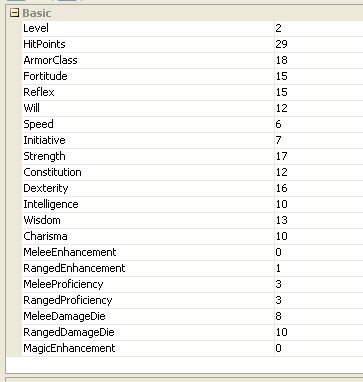
Token Properties

Now that Violet has values for Strength and so on, we can use them in our macro and then just edit Violet’s properties when she levels up or gets a new sword.  This requires somewhat fancier programming in the MapTool macro – beginning with the idea of a variable.

To establish a variable in a MapTool macro, you can do something as simple as writing: [MyVariable=10].  This would establish a variable called MyVariable and assign it a value of 10, which you could then use later in your macro (such as [MyOtherVariable = MyVariable + 5], giving MyOtherVariable a value of 15).  If you write it just like that, though, MapTool with send a message to the chat window with the value of the variable.  So a random “Violet: 10” would pop up.  Since we don’t want to actually send anything to the chat window when we declare the variable, we will denote this line as being hidden from chat by putting h: at the beginning of the declaration:

[h: MyVariable=10]

Technically this h: is a “roll option” in the MapTool lingo.  Remember that these macros are fundamentally constructed to roll dice, though you can also send text to the chat window and do more complex things.  There are lots of roll options you can use at the beginning of your bracketed code, such as gm: or just g: to show the result of the roll in the chat window for the GM but to hide it from the players.  In any case, we’ll be using lots of hidden lines in our macros since we don’t want every calculation showing up in chat – just the results.

Next, we need to know how to get the value of the properties that we’ve set for Violet so we can use them in our macro.  Fortunately, MapTool has a function called getProperty that does exactly this.  To figure out Violet’s melee proficiency bonus (which goes into the calculation of the attack bonus), we use the following code:

[h: Prof=getProperty(“MeleeProficiency”)]

This creates a variable called Prof, which is equal to the value of the property called MeleeProficiency.  Yes, the quotes and the parentheses are required.

What about Violet’s strength modifier?  We need to get the value of the Strength property, subtract ten from it, divide that by two and then round down.  Here’s the code to do all that:

[h: SkillMod=FLOOR((getProperty(“Strength”)-10)/2)]

The FLOOR function does the rounding down (CEIL or CEILING would round up).  Note that I’m calling this SkillMod to make it easier to re-use this code for other attacks that might use other skills, such as the Ranged Basic Attack that would use Dexterity.  Using similar logic to get some other properties, we’re able to write code that will let us calculate the attack bonus and damage bonus for the melee basic attack:

[h: SkillMod=FLOOR((getProperty(“Strength”)-10)/2)]

[h: DamageDie=getProperty(“MeleeDamageDie”)]
[h: HalfLevel=FLOOR(getProperty(“Level”)/2)]
[h: Prof=getProperty(“MeleeProficiency”)]
[h: Enh=getProperty(“MeleeEnhancement”)]

[h: AttackBonus=SkillMod+HalfLevel+Prof+Enh]
[h: DamageBonus=SkillMod+Enh]

Now we can go back to our earlier prettified macro and substitute in the AttackBonus and DamageBonus variables.  We can also use the ROLL function to take advantage of the fact that the damage die is now a variable rather than hard coded.  With the ROLL function, you tell MapTool the number of dice and the number of sides on each die you want to roll, so a d20 would be [ROLL(1,20)].  Put the lines of code above first, followed by these:

<b>Melee Basic Attack</b><br>
Attack: <b>[d20+AttackBonus]</b> versus AC<br>
Hit: <b>[ROLL(1,DamageDie)+DamageBonus]</b> damage

The output will look exactly the same as before, but now we shouldn’t have to touch the macro when things change for Violet.

There’s still one little wrinkle in our plans here, though – what happens if the d20 for the attack roll comes up on a natural 20?  That, my friends, would be a critical hit and should result in maximum damage.  It’s entirely possible to roll a natural 20 with this macro and not notice, in which case you might just take the regular result of the damage roll rather than taking the maximum possible damage.  To fix this, we need to get a little fancier.

I’ll start by saying that I like the ToolTip mouse-over function that shows players the breakdown of the die roll.  It’s not just a 22, it’s a d20 that came up on 15 plus an attack bonus of 7.  We’re getting into some programming that is going to have to roll the attack one time and then store the result as a variable, which means that when we show that variable, we’ll lose the d20 ToolTip.  So, things are going to look a little different because I’m going to start explicitly printing out the breakdown of the attack and damage rolls.

We’re going to need to roll the d20 for the attack once and store the result.  While we’re at it, we might as well roll the damage die once and store the result, along with figuring out what the max damage would be in case of a crit.  Below the earlier lines where we were defining variables, we add these lines:

[h: d20roll=d20]
[h: DamageRoll=roll(1,DamageDie)]

[h: AttackRoll=d20roll+AttackBonus]
[h: MaxDamage=DamageDie+DamageBonus]
[h: RegularDamage=DamageRoll+DamageBonus]

Now we’ve defined the result of rolling a d20 for the attack as a variable called d20roll and the result of rolling the damage die as a variable called DamageRoll.  This means that we can output the result of the attack roll and then check to see if there was a critical hit.  If there was a crit, we want to call out this fact and make sure the damage is maxed.  If not, we want to print the normal damage roll output.  This means that we need to get into the IF function in MapTool.  I won’t go into all of it here – I’ll just show the final version.  The gory details of using IF statements in MapTool can be found in the excellent MapTool wiki, so I won’t rehash them.

<b>Melee Basic Attack</b><br>
Attack: [d20roll] + [AttackBonus] = <b>[AttackRoll]</b> versus AC<br>
[if(d20roll==20), CODE:
{<font color=Red>–CRITICAL HIT–</font><br>
Damage: [DamageDie] + [DamageBonus] = <b>[MaxDamage]</b> damage
};
{Damage: [DamageRoll] + [DamageBonus] = <b>[RegularDamage]</b> damage}
]
Yes, this is a little bit complicated.  Basically, I print the name of the attack and the result of the attack roll (broken down into the d20 and the attack bonus).  I then check to see if there was a crit.  If there was, I print –CRITICAL HIT– in red (that’s the <font folor=Red> and </font> HTML tags) and then print the max damage breakdown.  If there wasn’t a crit, I print the normal damage breakdown.  The square brackets, curly brackets, parentheses and colons all have to be handled just right, and the CODE statement is a little touchy, too.  The wiki can explain it all.

In the end, we’re left with a snazzy little macro that efficiently handles melee basic attacks with critical hits, getting all of its information from the character token’s properties.  I haven’t included code to check for extra damage from a magical weapon on a critical hit, but that would be easy enough.  It would require a new property that tells you what the bonus damage die from your weapon is and then some extra code in the MaxDamage calculation to account for it.  As they say in textbooks, this is left as an exercise for the reader. Similarly, making this into a macro for Ranged Basic Attack is as simple as replacing the word Strength with Dexterity and Melee with Ranged in the macro code.

I hope you find this macro construction process to be helpful.  In my next macro article, I’ll show you how I’ve programmed in multi-attack abilities.   The final version of the Melee Basic Attack macro is below.

[h: SkillMod=FLOOR((getProperty(“Strength”)-10)/2)]

[h: DamageDie=getProperty(“MeleeDamageDie”)]
[h: HalfLevel=FLOOR(getProperty(“Level”)/2)]
[h: Prof=getProperty(“MeleeProficiency”)]
[h: Enh=getProperty(“MeleeEnhancement”)]

[h: AttackBonus=SkillMod+HalfLevel+Prof+Enh]
[h: DamageBonus=SkillMod+Enh]

[h: d20roll=d20]
[h: DamageRoll=roll(1,DamageDie)]

[h: AttackRoll=d20roll+AttackBonus]
[h: MaxDamage=DamageDie+DamageBonus]
[h: RegularDamage=DamageRoll+DamageBonus]

<b>Melee Basic Attack</b><br>
Attack: [d20roll] + [AttackBonus] = <b>[AttackRoll]</b> versus AC<br>
[if(d20roll==20), CODE:
{<font color=Red>–CRITICAL HIT–</font><br>
Damage: [DamageDie] + [DamageBonus] = <b>[MaxDamage]</b> damage
};
{Damage: [DamageRoll] + [DamageBonus] = <b>[RegularDamage]</b> damage}
]

MapTool Macros – Basic dice macros

As promised, it’s time I share some of what I’ve learned in putting together MapTool macros for my D&D Fourth Edition campaign.  My characters are a dragonborn swordmage, a deva druid and an eladrin rogue adventuring through the Keep on the Shadowfell.  They’re second-level characters, so they don’t have too many powers yet, but they have enough powers to require me to write some interesting macros for their attacks.

Before I go farther, I should mention that the MapTool wiki has great macro writing resources.  That’s how I learned most of what I’ve figured out so far.  So, be sure to check that resource out as well.

I’ll start with some simple campaign macros – about as simple as MapTool macros can get.  Every macro in MapTool is tied either to a token (token macros), a campaign (campaign macros) or to your MapTool program itself (global macros).  I personally haven’t created any global macros yet, and most of the really interesting macros I’ve made so far are tied to tokens (mostly the player character tokens), but let’s start with a simple campaign macro – a button that will let anyone in the game roll a d20 with one click.

In order to create a Campaign macro, you have to be able to see the Campaign window (usually a skinny little window near the bottom of your MapTool screen).  If you can’t see it, go to the Window menu in MapTool and click Campaign.  The Campaign window starts off pretty much empty.  To create a new campaign macro, right click in the Campaign window and select Add New Macro.  This will cause a little button with the label (new) to appear in the window.  Go ahead and click that button.

Nothing happened?  Well, that’s because the macro starts off with no code to execute by default.  We’ll fix that.  Right click on the (new) button and select Edit.  The window below should pop up.

New MacroNow you’re writing a macro.  Begin by changing the label in the top box from (new) to something more descriptive – in this case, let’s call it “d20” (you don’t need the quotes).  You can leave the Group and Sort Prefix boxes blank for now (they’re optional).  The meat of the action is in the Command box below.  We want this macro to show the result of a d20 roll in the chat window for whoever presses the button.  If you want this to be dead simple, all you need to do is type [d20] (in square brackets, just like I’ve done) into the Command box and click OK.  This will change the name of the button to d20.  When you click it now, you’ll get something like this in the chat window:

OnlineDM: 7

If you mouse over the number in the chat window, you’ll see ToolTip text that reads:

<< d20 = 7 >>

This tells whoever is interested that the 7 in the text box is the result of a d20 roll.

This is all right, but we can do better.  The command [d20] in square brackets tells MapTool to randomly generate a number between 1 and 20 and output the result to the chat window (with a ToolTip that shows that it’s the result of a d20 roll) as a message from whoever hit the button.  Just looking at the result, though, you can’t really tell that it’s a d20 roll.  Let’s format it nice and prettily.

Right click on the d20 button and select Edit again.  This time, put the following text in the Command box:

d20 roll: <b>[d20]</b>

And then click OK.  Now when you click the button, you’ll get output that looks like this:

OnlineDM: d20 roll: 19

All we’ve done is add a little extra text that shows up in the window (“d20 roll:”) and put the result of the roll in bold face (using the <b> and </b> HTML tags to surround the text that we want to show up in bold).  It’s not absolutely necessary, but it’s a nice thing to have, especially if you’re rolling lots of dice and you want to see at a glance which number came from which die roll.

You can now create a whole set of simple dice macros for your campaign – d20, d12, d10, d8, d6 and d4 – following the same process.  (If you have a weird sense of humor, you could create d47 or whatever you like.)  You can enter something like “Basic Dice” into the Group box for each macro, which will group the buttons together in a little box within the Campaign window that’s labeled “Basic Dice”.  You can also specify the order in which the buttons will appear within that box by using the Sort Prefix box in each macro.  I’ve given the d20 button the Sort Prefix of 1, so it shows up first, and then gone in decreasing dice values from there (d12 is 2, d10 is 3, etc.).  Feel free to go from d4 to d6 and on up to d20 if you prefer.

It’s worth noting that all of these simple dice macros are totally optional.  You could just type “/roll d20” into the chat window, getting output that reads something like:

* OnlineDM rolls: d20 => 9

Personally, I prefer the buttons.  They’re way quicker.  The /roll command also lets you do things like /roll 2d8 + 2d6 + 5, getting output such as:

* OnlineDM rolls: 2d8+2d6+5 => 3 + 5 + 5 = 13

For that sort of thing, though, I’m going with fancy-schmancy attack macros.  Tune in for the next post!

MapTool macros – simple monster attacks

Over the past few days, I have become intensely interested in the MapTool macro language.  I started with the desire to have one-click access to my monsters’ attack powers.  I decided to write a macro for each monster that would create an attack roll (d20 plus whatever the monster’s attack modifier is) and a damage roll.  I’d add in text describing additional effects on a hit and even some buttons for non-attack macros just to remind myself what the powers could do (such as an Ooze’s ability to shift its speed).  For all of these attacks, I don’t want them showing up on the players’ chat boxes (hiding them behind the DM screen, so to speak), so I have all of the results go only to the GM.  Here is an example – an Adult Kruthik’s Claw attack:

[gm: “Attack roll: “]
[gm: 1d20+8] [gm: ” versus AC<br>”]
[gm: “Damage roll: “]
[gm: 1d10+3]

The fact that everything is within brackets that begin with “gm:” is the way that the output is hidden from the players.  Because the text is within these brackets, it must be enclosed in quotation marks (outside of brackets, you don’t need to put your text in quotes – it will just show up to everyone in the chat window).  Note that this also applies to the line break indicator from HTML <br> – outside of brackets you can just write it as <br>, but inside brackets it has to be put within quotation marks as “<br>”.  The dice programming is pretty straightforward.  1d20+8 is just what you think it would be.  The output from this macro will look something like this:

Kruthik Adult: Attack roll: 24 versus AC
Damage roll: 6

Here’s a slightly more involved example – the Kruthik Adult’s Toxic Spikes attack.

[gm: “Recharge 5/6; Result: “] [gm: d6 ] [gm: “<br>”]
[gm: “Two attacks against 2 different creatures<br>”]
[gm: “Ranged 5<br>”]
[gm: “Attack 1: “]
[gm: 1d20+7] [gm: ” versus AC; “]
[gm: 1d8+4]
[gm: ” damage and ongoing 5 poison damage and slowed (save ends both)<br>”]
[gm: “Attack 2: “]
[gm: 1d20+7] [gm: ” versus AC; “]
[gm: 1d8+4]
[gm: ” damage and ongoing 5 poison damage and slowed (save ends both)”]

The first line reminds me that this is a power that recharges on a roll of 5 or 6 on a d6 and then rolls a d6 to tell me whether the power recharges or not this turn.  If it doesn’t and I’ve already used it in this encounter, then I’ll just ignore the rest of the output.  The next two lines just remind me about what the power does (two attacks against two different creatures, within a range of five squares).  Then the macro generates two separate attack rolls, with the damage for each put on the same line.  There’s also some extra text explaining the ongoing damage and slowing effect.  The output is as follows:

Recharge 5/6; Result: 5
Two attacks against 2 different creatures
Ranged 5
Attack 1: 23 versus AC; 10 damage and ongoing 5 poison damage and slowed (save ends both)
Attack 2: 14 versus AC; 12 damage and ongoing 5 poison damage and slowed (save ends both)

Another example: the Blue Slime’s Stench Pulse burst attack:

[gm: “Once per encounter only.<br>”]
[gm: “Attack roll: “]
[gm: 1d20+6 ] [gm: ” versus Will<br>”]
[gm: “Hit: Targets are dazed and weakened (save ends both)”]

This just rolls the attack a single time, even though there could be several targets in the burst.  By D&D rules, each target should have a separate attack roll.  So, I would need to click the button once per target.  That’s okay, but it’s not very efficient, and the “Hit” line will be reprinted for each target instead of just one time.

Now, I hadn’t noticed this problem when I first put this macro together – it only became clear after I had put together some player character attack power macros.  Maybe my players will want to roll their own dice and telling the table what their results are, but I couldn’t resist – I wanted to program their powers in MapTool macros.  That’s for my next post.