
Private maps in Gametable

Today I’d like to focus on an important tool within Gametable – the ability to set up your map with some items hidden and then reveal them to your players as they explore and discover new things.  This isn’t very hard to do, but it’s important to do it right.

As my example today, I’ll use the Irontooth encounter map that my party went through last weekend.  Here is the completed, fully revealed encounter map (and the map file is at this link):

Kobold Lair Interior - Complete

This is a pretty straightforward battle map.  I started by setting the map background to gray.  I then created a few underlay images of dark gray walls to serve as the cavern walls.  You’ll note that these are actually square images, not rectangles.  If you make them rectangles, Gametable will want to center them within their squares, which is really not what you’re looking for.  When creating images that you want to appear off-center in the game (such as a 2 by 1 square wall that you want to show up in the bottom two squares of a four-square box, rather than across the middle of the four-square box), make the image a transparent square and then color in only part of the square, as I’ve done below.


ThickWall_1 ThickWall_2 ThickWall_3 ThickWall_4

After using these thick walls for the cavern layout, I brought in several copies of my homebrew kobold pogs along with the pre-packaged goblin pog (for Irontooth).  I labeled the kobolds who weren’t minions by left clicking on each and and choosing “Set Name.”  (I also do this in-game to denote a creature who is bloodied, prone, marked, etc.)  I brought in my homebrew minis for Irontooth’s bed and treasure chest.  I also drew the waterfall entrance on the left side of the map by hand (I’m not much of an artist, but I can spice things up with a little color).  This gave me a complete map – well, except for my PCs’ minis.

Now, when the party comes through the waterfall, I don’t want them to see the entire map all at once.  I certainly don’t want them to know where Irontooth and his treasure are, for instance.  I don’t even want them to know how big the cavern is at the start.  Here is what I want them to see when they first walk in:

Kobold Lair - Initial View

This just shows what the players could see when they first walk through the waterfall.  There are four kobold minions and a kobold skirmisher in front of them, and they can see the cavern walls that are immediately around them.  So, what happened to the rest of the cavern?  It’s on the private map.

Kobold Lair - Private Map

To get to the private map, either go to Map – Edit Private Map, or simply hit Ctrl+F.  You’ll note that the public map now appears in a shaded-out form, while the parts that are hidden from the players are in full color.  You can now edit this map as you would the main map (add or remove items, move them around, draw on the map, etc.).  To reveal something to the players, you simply need to publish it.  To publish an individual item, such as a monster or a treasure chest or a single section of wall, you can left click on the item you want to reveal and click Publish.
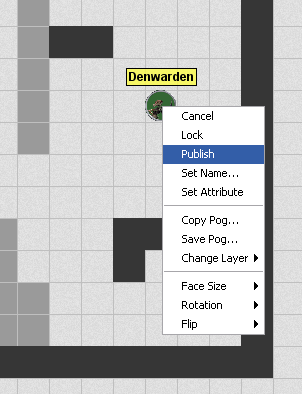
Publishing the Denwarden

Alternatively, you can use the mass publisher tool.  This tool can be found on the toolbar at the top of the screen (and can be turned on by pressing Ctrl+9):Publish Tool

The publish tool will let you drag a box around areas of the map that you want to publish, and they will all appear at once.  This is also the way to go when you are getting your map set up for your players – you can start with your complete, revealed map and then selectively use the publish tool to move some items to the private map.  So, when you’re on the private map the publish tools moves items to the public map, and when you’re on the public map it moves things to the private map.  It toggles their public/private status.

There’s one other important point to understand about the public and private maps – they are separate map files in Gametable.  I learned this lesson the hard way, before I really understood the private map.  In my earlier post about my map of the first section of the Keep on the Shadowfell, I showed an image of the complete keep (so far):

Keep on the Shadowfell Map 1

I was so proud of myself for setting up this detailed map.  I then moved most of it to the private map (so that it would be ready to go for my players) and saved the map file.  I then cleared off the map and started drawing my map for the outdoor kobold ambush.  When working on that map, I started moving things to the private map and realized that all of the private items from the map of the keep were there, which I obviously didn’t want outdoors, so I cleared it all off the private map.

Imagine my chagrin when I later opened what I thought was the complete map of the keep that I had drawn, only to discover that it only contained the small section that I wanted to be revealed to the players when they first entered:

Keep on the Shadowfell - Revealed

Crap!  The private map was completely empty.  It turns out that I had to save it as a totally separate file and then load that file when I had toggled my view to the private map view.  So, here is how I set up map files now:

  • Start by saving a new map file as “NameOfMap_Complete.grm”
  • Go to Map – Clear Map
  • Build the new map, with everything revealed
  • Save the map
  • Go to the private map (Ctrl+F)
  • Save this map as “NameOfMap_Private.grm”
  • If there’s some private stuff on here from a previous map, go to Map – Clear Map
  • Toggle back to the public map and start unpublishing whatever you want to hide using either the Publish tool or by left clicking on each item and choosing Unpublish (for finer control)
  • Toggle back to the private map, and you’ll see your unpublished items
  • Once you have everything set the way you want it, save the private map as “NameOfMap_Private.grm” (you’ve already set it up under this name) and save the public map as “NameOfMap_Public.grm”
  • When you’re ready to use this map, you’ll need to toggle to the public map view and load “NameOfMap_Public.grm,” then toggle to the private map view and load “NameOfMap_Private.grm”

So, remember that you’re actually editing two different maps, one public and one private, and you’ll be all right.  Once you understand how this tool works, it’s fantastically useful.  I love being able to set up my entire map in advance and then reveal little bits at a time.  If you set up a whole dungeon level this way, you can simply save the public map and private map as they exist at the end of your session (with the player characters saved wherever they happen to be standing and everything) and pick up right where you left off at the last session.  This is one area where the online game has some advantages over the in-person game!

Also, I’ve saved the public, private and complete versions of my maps on the Downloads page, so you can see this in action with maps that are ready to use.  I’d love to hear any comments you have regarding ways to improve this process, experiences you’ve had with this type of map online or in real life, etc.
First actual online gaming session – it rocks!

We have a success!  Tonight my friends and I tried playing D&D online together for the first time, and it worked.  Not only did it work, but we had so much fun that everyone wants to get together again tomorrow to finish the adventure.  Huzzah!

The day started off with bad news for gaming.  The group is supposed to be six of us.  I (Michael) am the DM and my wife Barbara is playing our defender, a dragonborn swordmage.  We’re in Colorado, a bit south of Denver.  Lane and Zach, who live in Tallahassee, Florida, are a deva druid and an eladrin rogue, respectively – a controller and a striker.  Jen and Eric, who live in Bradenton, Florida, are a gnome wizard and a half-elf cleric – another controller and a leader.  However, a few hours before we were supposed to start, Jen called to say that Eric had to work late and they weren’t going to be able to play tonight.  Should we cancel?  Should we just do a technology check?

Screw that – we’re playing!  This was actually Barbara’s suggestion, which made me very happy.  Also, since we were planning on waiting until 9:00 PM Eastern time to get started in order to give Eric time to get home from work, with Eric not playing we were able to start closer to 8:30 Eastern.

In preparing for today’s session, I had to get myself a webcam so I could talk to everyone on Skype.  Well, I could have just gotten a microphone, but the webcam only cost $30 and it works just fine as a microphone, so that’s what I got.  I also had to get my maps ready.  You may recall my last post, where I put up the detailed map of the first few areas of the Keep on the Shadowfell itself, all finished and ready to go.  Well, since we were going to start with a smaller group, I decided that we should try a side quest first.  When we first played in person in Florida the night of Jen and Eric’s wedding, the group charged right through the first kobold ambush and a quick stop in Winterhaven before making a beeline for the keep, which is where we stopped, halfway through the first battle.  I missed the fact that I was supposed to send a second kobold ambush at them when they left town, and I didn’t roleplay anyone in the tavern to give them a chance to explore (I was a bit rushed as far as prep time went – that is, I had none!).  So this time, I rolled back the clock and gave them the second kobold ambush, then sent them back to town.  In town, I railroaded them a bit into a side quest to seek out the source of the kobolds.

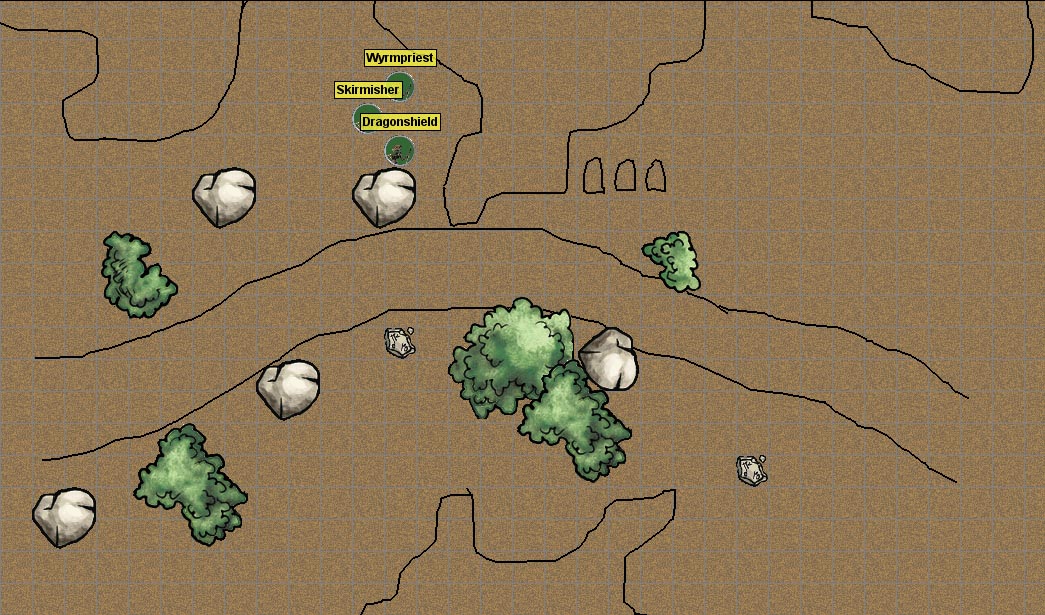
First thing first: the kobold ambush.  Here is the map I used, with enemies displayed.

Kobold Ambush

Gametable map for a kobold ambush encounter

Okay, so this one isn’t as fancy or detailed as the Keep on the Shadowfell map I shared yesterday.  This is partly because I wasn’t using the nice, pre-created dungeon walls that come with Gametable this time and partly because I was in a hurry.  I drew this last night (after realizing that the party might want to try a side quest), but I didn’t have much time to do it.  Fortunately, it wasn’t hard.  I took the same kobold image that I used for my OpenRPG mini in an earlier post, added a green background, and used TokenTool to make a pog.  I’m still torn on the “little statue” mini versus “round pog” mini debate, but I have to admit that the round pogs look pretty good and are easy to distinguish from one another at a glance, especially if I give them different background colors.  These guys are all kobolds, so I used the same minis, but I set their names differently to distinguish them.

Combat was surprisingly interesting.  The party didn’t have much success with their Perception checks, so the kobolds got a surprise round on most of them.  Two out of the three PCs were bloodied, one getting down as low as 4 HP, but they prevailed.  My favorite moment of the night was when Lane’s character wanted to claim the holy symbol from around the Kobold Wyrmpriest’s neck.  She was into it!

After heading back to town (on rails), the party found their way to Lord Padraig to get hired to clear out the kobold home base.  Barbara’s character was savvy enough to do some negotiating, getting a little extra gold for their fee (if they succeed, of course).  They decided to sleep in the inn for the night and then headed toward the kobold lair (Paddy drew them a map).  This brought them to the next encounter:

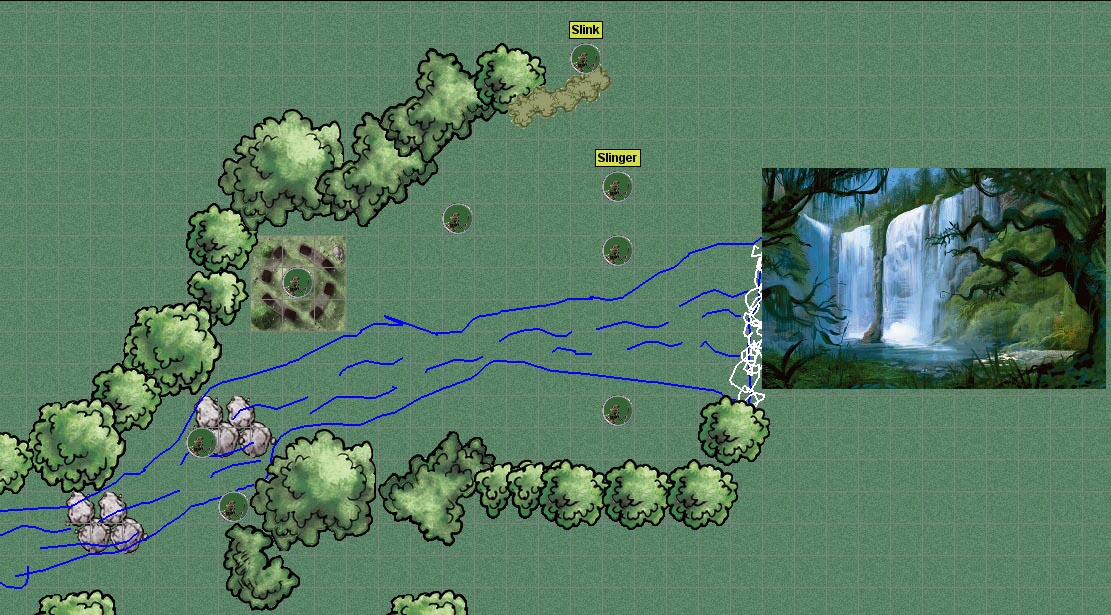
Kobold Lair Exterior

The exterior of the kobold lair in the waterfall valley

This is, obviously, another map that I drew in a hurry last night.  I used pre-packaged trees and rocks, drew a stream and some foam at the bottom of the waterfall, and pasted in the image of the waterfall valley from the Keep on the Shadowfell PDF, just so the players could see what it looked like.  I also used a circle of stones from Dungeon Tiles (available for Masterplan via the Dungeon Tiles Yahoo group).  Quick and easy, and it worked just fine.  This time, the party tried to be stealthy and had some good success with it.  Kana, the fragile druid, managed to get herself surrounded by minions (the kobolds with no labels) but wisely used some area of effect spells to get out of trouble.  The slink got low on hit points and managed to escape into the waterfall to warn his buddies.

After this encounter, even though it was 11:30 PM Eastern time, Zach and Lane were really tempted to keep playing.  I suggested pausing until tomorrow, since we all have some free time tomorrow.  This would also give me time to put the next map together!  Very important.  So, we’re getting together online again tomorrow afternoon.

A good time was had by all tonight, and I’m excited!  I’d like to share a few things that I learned this evening.

First, a little prep time goes a long way with Gametable.  It doesn’t take too long to put together a totally serviceable map that’s way fun for play.  I wouldn’t have a problem with drawing on the fly if I had to.

Second, scaling encounters meant for five players down to three players isn’t that hard.  I simply brought the total XP of the baddies down by 40%, eliminating enemies as needed.  It worked like a charm – a good challenge, but one that the party can handle.  We’ll see how that goes with the big boss battle tomorrow – one that I’ve heard should be adjusted even with five players (it’s a level 6 encounter for level 1 characters – I plan to tone it down).

Third, if you’re missing an important role in your party (in our case, a leader to heal characters), you can get creative.  We gave our druid the cleric’s Healing Word power and changed her Wild Shape power to a free action.  Having Healing Word mattered a LOT, and I’m glad we did it.  If we continue much longer with a three-character party, we’ll have to establish a more permanent way of getting a healing feature, but this patch worked great for tonight.

Fourth, I’ve learned how to use the private map effectively – but that’s for another post.

Fifth, keeping track of initiative and hit points in an Excel spreadsheet is awesome.  I love it.  If I were DMing a game in real life, I would still want to use it.  Again, that’s a post for another day.

Sixth, the dice rolling macros in Gametable are fantastic.  That’s another topic for a post of its own.  But I’ve decided that I want to set up macros for each day’s encounters in advance – every bad guy’s attack and damage rolls – and it will make combat super-easy.

I’ll also start a Downloads page on this blog for posting my Gametable map files, dice macros, images, etc.  If there’s something you’ve seen me mention on the blog that you don’t see on that page, please let me know.  I want that page to be a good source for other DMs who want to run adventures in Gametable.  I’m loving it!

First map in Gametable – game on!

I haven’t posted in a couple of days, but that doesn’t mean I haven’t been working on my online D&D game!  Our group is tentatively scheduled to meet online tomorrow (as I post this) for the first time.  We plan to try connecting to one another with Gametable and Skype and maybe, if the technology works out okay, try to get some gaming in.

I don’t have much of an audience for this blog (yet), but I could see my players checking it out from time to time.  This is interesting because I really want to share the work I’ve done so far, but I don’t want to spoil any surprises for the players.  Since it’s unlikely that my friends will be checking this before we play – and because I’m just anxious to share what I’ve learned – some lessons are below.

First of all, I should point out that I’m using a published D&D adventure (The Keep on the Shadowfell) for this first game.  I’m an inexperienced Dungeon Master, and my more knowledgeable brethren have told me to stick with pre-published adventures, at least at first.  This means that I can build maps in advance using Gametable.  I’ll jump to the punch line and show you the finished product (at least, finished so far):

Keep on Shadowfell Map 1

My first detailed map in Gametable, ready for adventure!

So, what’s all this?  It’s the first five areas of the Keep on the Shadowfell, fully revealed.  I used a few pre-packaged items and a whole bunch of items that I’ve created myself, so let me share with you a little bit about what I’ve done.

The basic building block of the dungeon is the dungeon wall.  Gametable comes with four walls – short (2 square) and long (4 square) horizontal and vertical walls.  These are easy to use for the basic dungeon layout.  It also comes with a bunch of pogs – that is, minis to use for characters and monsters.  I’ve used their Goblin mini (quite liberally) and one of their character minis (for one of my player characters).

Long vertical wall Long horizontal wall Short vertical wall Short horizontal wall

Above are the four dungeon wall graphics that come with Gametable; below are the monster and player pogs I’m using that came with the program:

Goblin pog

Goblin

Skeleton pog

Skeleton

Skeleton Lord pog

Skeleton Lord

Female character

Female character

Male character

Male character

Now, if you look at my map graphic, you’ll notice a whole lot of other things on there.  Everything aside from the stuff I just listed is something I made – usually using images I found online, but occasionally using my own skills of an artist.  My wife Barbara is the one who usually uses Photoshop Elements, but for this project I’ve had to get at least a little bit familiar with the program.  (By the way, if you own any of the images I’ve used and would like me to take them down, just let me know).

If you’re going to make graphics using Photoshop Elements for something like Gametable, you’re probably going to want them on a transparent background.  That way, if your new item (such as a treasure chest, a table, a stairway, etc.) doesn’t take up every pixel of its square, the pixels around it will match the dungeon background or the other elements you’ve put it on top of.  That’s a good thing.  The best way I’ve found to get a transparent background is to start with a new file, specifying that you want it to be transparent.

New Photoshop File

Note that the Transparent box at the bottom is checked

This will give you a file with a gray and white checkerboard background – that’s Photoshop’s indication that the background is transparent.  I don’t know of a way to do this in regular old MS Paint, so I’ve migrated to Photoshop Elements.

To turn an image online into a useful Gametable element, start by copying the image into Photoshop Elements.  You can do this by simply clicking on the image, dragging it down to Photoshop in your taskbar, waiting for the Photoshop window to open, and then releasing the image inside of Photoshop.  For instance, I need to get an image of a zombie (a monster my players will be encountering soon), so I’ll begin by searching for promising images using Google.  Here’s one that I like, from a blog called Great White Snark (this is actually a picture of a cake!):

Zombie large

I copied this to my clipboard, then went into Photoshop Elements and selected File – New – Image from clipboard.  Now I have the image open in Photoshop exactly as you see it above.  I don’t want the whole thing for my zombie mini – specifically, I don’t want the white walls in the background, nor do I want to see the edge of the table that the cake is sitting on.  So, I use the Magnetic Lasso tool to highlight just the parts of the image that I want (yes, this can be very painstaking) and then go to Edit – Copy.  Now that just the zombie itself is on my clipboard, I create a new blank file with a transparent background as described above and paste my zombie image into that.

Zombie2

Finally, I need to get my zombie image to the size that I want.  I described in an earlier post a program called TokenTool that helps you generate pogs like those that come with Gametable – round, with some kind of border encircling them.  Those are fine, but I’ve discovered that I actually prefer my minis to be like little statues with transparent backgrounds rather than filled-in circles.  This way, if they ever end up on top of each other, you can still see some of the mini that’s hidden behind the other.  Also, I try to make them square so that I can anticipate how they’ll look.  Finally, I’m starting to feel like I want my minis to be a little bit smaller than the full size of the square, just so that they don’t overlap with the edge of a wall or anything like that.

I’ll start by making the image a square.  To do that, I want to pad the canvas size in the horizontal direction so that it matches the vertical direction.  I go to Image – Resize – Canvas Size, and I see that my image is currently 333 pixels by 489 pixels.  I want some extra space around the mini, so I’ll resize to 525 pixels by 525 pixels (the canvas, remember, not the image), and I’m left with this:

Zombie3

Now all that’s left to do is to shrink this down to the size of a mini for Gametable – 64 by 64 pixels (if it were a large creature, it would be 128 by 128 pixels, and so on for bigger sizes).  I go to Image – Resize – Image Size (as opposed to my earlier Canvas Size) and choose 64 by 64 pixels.  With that, I have my finished zombie mini (note that Gametable uses PNG files for its images, not JPGs):

Zombie Mini

To make the other items you see on the map, I used pretty much the same procedure.  This includes crates, chests, three different tables, plank bridges and a torture rack, all of which are below:

Crate mini

Crate

Chest mini

Chest

Small table

Small table

Tall table

Tall table

Long table

Long table

Plank bridge

Plank bridge

Torture Rack

Torture Rack

There were a few items that I drew myself in Photoshop.  The biggest pain in the butt was actually the stairs, because I wanted them to be open rectangles that showed the dungeon background through them, rather than filled-in rectangles (which Photoshop draws by default).  In Paint this is an easy change to make, but in Photoshop it’s a huge pain.  I ended up using this article from About.com in order to make the stairs work, but boy, what a hassle!  They did turn out looking great, but SO MANY LAYERS!  I used a more freehand approach to draw the curtain, which I end up changing within Gametable so that it has a face size of 2 squares (with just 1 square, it sits in the middle of the square – I wanted it to go across the border of the squares).  The pillar was easy (just a gray circle), and the prison bars were also simple (a few gray squares copied over a few times – also changed within Gametable to have a 2 square face size).  The bed was a little bit trickier – I used the wood from the plank bridge as the headboard and then some rounded rectangles for the bed itself and the pillow.  The bedspread needed texture – a flat color looked awful – so I picked one from within Photoshop.  I freely admit that my fire pit looks like a pizza – I guess I should have searched for a good image of that online, but oh well!  And the iron maiden’s fancy artwork is all me, baby.  Yes, I am a crappy artist, but it kind of looks like an overhead view of an iron maiden, doesn’t it?  Kind of?  A little?

Stairs

Stairs

Curtain

Curtain

Pillar

Pillar

Prison bars

Prison bars

Bed

Bed

Fire pit

Fire pit

Iron Maiden

Iron Maiden

I also created a couple of custom monster and character minis – I’ll probably need to make a few more characters before tomorrow night’s session, for the rest of my players.

With that, I’ll call it a day.  I’ve discovered several more features of Gametable, such as how to hide areas and monsters from your players until the players encounter them, but I’ll save those lessons for another day.  If you’re running your own games in Gametable or similar software and you’d like to use any of the graphics I’ve created, please feel free – I hope I can save you some trouble!

OpenRPG – installation and map basics

When my friends first told me that they were interested in continuing the D&D game that we had begun at a wedding in Florida by playing the game online, we needed to figure out how to make this work.  One of my friends pointed me toward OpenRPG – a free program that creates a virtual tabletop for everyone to “sit” around, see the battle map, chat and roll dice.  Now the trick was figuring out how to make it work.

I’ll begin by noting that I am running OpenRPG on my Dell laptop, which uses Windows XP.  It’s a machine that I bought around 2005, so it certainly doesn’t have the latest bells and whistles, but it has no problem at all running OpenRPG.

You can download OpenRPG at this link.  As I write this, the latest version is 1.8.  The download is somewhat more involved than a typical internet download, in that it start by installing Python (the programming language in which OpenRPG is written) onto your computer.  When you run the program, you will see that it will run in two separate windows – one DOS prompt window for Python and then the OpenRPG program window itself (see below).

Note the main OpenRPG screen (the background) and the DOS window (foreground)

Note the main OpenRPG screen (the background) and the DOS window (foreground)

There is an online user manual for OpenRPG which does have some useful features, but what I’ll present below are the basics for my use of OpenRPG.  These include some lessons that I had to learn via trial and error.  I’ll note right now that I’m only focusing on the map for now.  The chat window and the dice roller will be addressed later.  As for such things as character sheets, I don’t plan to use them in my game for the time being.

The map is the real power tool of OpenRPG and what makes it worthwhile for online role playing games.  You’ll note that the map has six tabs beneath it, and you’ll want to ultimately use all of these to set up your virtual tabletop for your game.

  • Background: This is where you set up what you would generally think of as “the map” – the walls of your dungeon, the trees in your field, the various features of the area where your player characters (PCs) will do battle.
  • Grid: This is where you specify the size of the underlying grid of the map and what it will look like to your players.
  • Miniatures: Here’s where you put the virtual equivalent of miniature figurines (which I’ll still call “minis” in this blog) onto the battlefield, representing PCs, NPCs (non-player characters) and monsters.
  • Whiteboard: This lets you write on the map on the fly – I’m not very experienced with this yet.
  • Fog: This lets you hide and then reveal parts of the map as your players explore
  • General: Set the size of the overall map itself (in pixels), or reset the map to its default settings.

I’d suggest starting with the Grid tab and going from there.  While your game may vary, I’m playing Dungeons and Dragons fourth edition, and I use a square-grid map with minis that (assuming they’re Medium-sized) will only occupy one square at a time.  This means that I use a Rectangular rather than Hexagonal or Isometric grid, and I use the Snap option (which makes each mini be in one square or another, not spread across squares).  I also do like to see the grid clearly, so I use Solid Lines rather than Dotted Lines or No Lines, and I like them colored black (but feel free to use gray or whatever makes sense for your grid).  Finally, I like the grid boxes to be 60 pixels by 60 pixels.  This will give you boxes that are big enough to see the minis in them clearly.  Now, that takes up a lot of space if you have a sprawling battle map, so you’ll probably need to scroll around the map when you’re playing (or zoom out).  Personally, I think that’s no big deal.

My OpenRPG grid settings

These are the settings that I use for my grid in OpenRPG

Next up: Background.  This is where the action really is.  The background is where you draw the walls of your cavern, the stairs that your characters can use, terrain features, buildings, doors, etc.  That is, everything you would draw yourself on an erasable battle map or build with Dungeon Tiles.  In order to do this, you need to develop your skills of an artist.

I freely admit that I’m a lousy artist.  I was a great student in school, but not so much in art class.  However, I LOVE gaming, and I’ve found inspiration to do some art for online DMing.  Still, I’m keeping my map background art very simple for now.  If you’re playing around on your desktop (not connected to a server for playing with other players online), you can load up an image file to use as your background by choosing “Image” from the dropdown menu on the Background tab, then clicking Browse and selecting the image file you want to use.  However, if you want to use the image for online games, you’ll need to get that image file onto the internet somewhere so that your players can access it, too, and then enter its URL into the Background tab.  I’m going to be using my blog for hosting my files, but something like Photobucket or Picasa should work just fine, too.  And if you want to use any of the background images that are on my blog, feel free to link to them in your game!

So, how do you go about creating a good background?  Well, I’ve decided to start with the grid.  I wanted a blank image file with a grid of 60 by 60 pixel squares on it (to match the actual grid in the game), and then I would fill in squares that are walls and leave blank the squares that are floors.  Building the 60-pixel grid image file was surprisingly a pain, but I managed it – and now you don’t have to!  Feel free to start with the grids below.  One of them is 16 squares by 16 squares (not all that big, but probably enough for a single encounter area) and one is 32 by 32 squares (much more useful for putting together something like an entire floor of a dungeon, perhaps, or at least a big chunk of one).  Make sure you click on the grid you want to pull up the full-size version of the file.

Map grid - 16 by 16 squares, 60 pixels each

Map grid - 16 by 16 squares, 60 pixels each

Map Grid - 32 by 32 squares, 60 pixels each

Map Grid - 32 by 32 squares, 60 pixels each

Once you have this grid, you can start filling in squares using something as simple as MS Paint and the paint bucket tool, then save a new version that’s an actual map.  From there, you can add fancier art as you wish – though I freely admit I haven’t done this yet!  It’s all black and white, square walls, featureless corridors, etc.  Better art will come over time!  Below is an example of a grid that has a room roughed in, just to give you an example of what this might look like.  I’ll share actual rooms that I put together as I assemble them over time.

Rough room map

An example of the small grid with a simple room roughed in with gray walls.

Since we’re talking about the background, we should go to the General tab.  There are really two main functions here.  First, we have the Default Map button, which clears away anything you’ve added (backgrounds, grid changes, minis, fog) and lets you start from scratch.  Second, you can set the size of the map.  If you use the 16 by 16 square map, the size will be 961 by 961 pixels.  If you use the big 32 by 32 square map, the size will be 1921 by 1921 pixels.

You’ll note from the image below that I’ve set the map size appropriately for the large grid, and I’ve scrolled to the bottom right corner of the map.  However, you’ll note that while the grid’s background color is white (from the image file), there’s a green border around the edges of the map.

OpenRPG - General Map Settings

These are the General map settings for the large grid. Note the green border along the right and bottom sides of the map.

If you want that green edging to go away, go to the Background tab, select Color from the dropdown menu, click the Color button and pick the color you want.  That will change the color of the Color button itself.  To actually put it into place on the map, you then click the Apply button.

OpenRPG - Background Color

Setting the background color to white, with the necessary dropdowns and buttons circled.

All that remains for me to talk about today is minis.  To create a mini from scratch using MS Paint, I suggest starting with a file that is the right size and filling it in.  Assuming you’re using a 60-pixel grid, I recommend creating minis that are 58 by 58 pixels.  That way, they fit inside the grid squares and do not cover up the borders of the squares.  To do this, go to the Image menu in Paint, then select Attributes, then set the size you want, in pixels.

From here, you’ll be left with a tiny little box to draw in.  I highly recommend zooming in for more accuracy (View – Zoom).  This is the procedure I used to create my first mini – Stick Mini.

Stick Mini

Stick Mini - little, but mighty!

Now, if you’re not a great Paint artist and you want some better-looking minis, the simplest thing to do is to find an image that you like online (assuming that the owner of the image is okay with you using it), copy it to Paint, crop it as you see fit, get it into a square size, and the resize it to 58 by 58 pixels.

Let’s say that you find an image of a kobold that you like.  For instance, I found the image below at a blog called Dice Monkey.

In his current form, this kobold has two problems that keep him from being a good mini: He’s too tall (not a square) and he’s too big (not a mini).  The image dimensions are 240 pixels wide by 327 pixels tall.  To solve the first problem, I grabbed the top of his spear and shifted it down closer to his hand, and I moved the image around until he was at the top of the box.  I then cropped the image (Image – Attributes) to 240 by 240 pixels, leaving me with the picture below.

Short KoboldNow he’s 240 by 240, but I want him to be 58 by 58.  Some math reveals that 58 divided by 240 equals about 24%, so I want to resize the image so that it’s 24% as tall and 24% as wide as it currently is.  To do this, I go to Image – Stretch/Skew and enter 24 for both Vertical and Horizontal.

Kobold resizing

After resizing, I’m left with my finished kobold mini:

Kobold mini

My finished kobold mini, in all of his 58 by 58 pixel glory

You can use the same process to create minis for other monsters, NPCs and even player characters.  However, if you have players who like to get involved with their characters, I highly recommend asking them to create their own minis and sending them to you for use in the game.  It’s way more fun for them to control a character that they created, after all!

That wraps up the map basics.  In future posts, I’ll talk more about the fog of war, creating more detailed backgrounds and more minis, and how to actually USE the stuff you’ve created.  As always, comments are highly encouraged!
