MapTool macros – simple monster attacks

Over the past few days, I have become intensely interested in the MapTool macro language.  I started with the desire to have one-click access to my monsters’ attack powers.  I decided to write a macro for each monster that would create an attack roll (d20 plus whatever the monster’s attack modifier is) and a damage roll.  I’d add in text describing additional effects on a hit and even some buttons for non-attack macros just to remind myself what the powers could do (such as an Ooze’s ability to shift its speed).  For all of these attacks, I don’t want them showing up on the players’ chat boxes (hiding them behind the DM screen, so to speak), so I have all of the results go only to the GM.  Here is an example – an Adult Kruthik’s Claw attack:

[gm: “Attack roll: “]
[gm: 1d20+8] [gm: ” versus AC<br>”]
[gm: “Damage roll: “]
[gm: 1d10+3]

The fact that everything is within brackets that begin with “gm:” is the way that the output is hidden from the players.  Because the text is within these brackets, it must be enclosed in quotation marks (outside of brackets, you don’t need to put your text in quotes – it will just show up to everyone in the chat window).  Note that this also applies to the line break indicator from HTML <br> – outside of brackets you can just write it as <br>, but inside brackets it has to be put within quotation marks as “<br>”.  The dice programming is pretty straightforward.  1d20+8 is just what you think it would be.  The output from this macro will look something like this:

Kruthik Adult: Attack roll: 24 versus AC
Damage roll: 6

Here’s a slightly more involved example – the Kruthik Adult’s Toxic Spikes attack.

[gm: “Recharge 5/6; Result: “] [gm: d6 ] [gm: “<br>”]
[gm: “Two attacks against 2 different creatures<br>”]
[gm: “Ranged 5<br>”]
[gm: “Attack 1: “]
[gm: 1d20+7] [gm: ” versus AC; “]
[gm: 1d8+4]
[gm: ” damage and ongoing 5 poison damage and slowed (save ends both)<br>”]
[gm: “Attack 2: “]
[gm: 1d20+7] [gm: ” versus AC; “]
[gm: 1d8+4]
[gm: ” damage and ongoing 5 poison damage and slowed (save ends both)”]

The first line reminds me that this is a power that recharges on a roll of 5 or 6 on a d6 and then rolls a d6 to tell me whether the power recharges or not this turn.  If it doesn’t and I’ve already used it in this encounter, then I’ll just ignore the rest of the output.  The next two lines just remind me about what the power does (two attacks against two different creatures, within a range of five squares).  Then the macro generates two separate attack rolls, with the damage for each put on the same line.  There’s also some extra text explaining the ongoing damage and slowing effect.  The output is as follows:

Recharge 5/6; Result: 5
Two attacks against 2 different creatures
Ranged 5
Attack 1: 23 versus AC; 10 damage and ongoing 5 poison damage and slowed (save ends both)
Attack 2: 14 versus AC; 12 damage and ongoing 5 poison damage and slowed (save ends both)

Another example: the Blue Slime’s Stench Pulse burst attack:

[gm: “Once per encounter only.<br>”]
[gm: “Attack roll: “]
[gm: 1d20+6 ] [gm: ” versus Will<br>”]
[gm: “Hit: Targets are dazed and weakened (save ends both)”]

This just rolls the attack a single time, even though there could be several targets in the burst.  By D&D rules, each target should have a separate attack roll.  So, I would need to click the button once per target.  That’s okay, but it’s not very efficient, and the “Hit” line will be reprinted for each target instead of just one time.

Now, I hadn’t noticed this problem when I first put this macro together – it only became clear after I had put together some player character attack power macros.  Maybe my players will want to roll their own dice and telling the table what their results are, but I couldn’t resist – I wanted to program their powers in MapTool macros.  That’s for my next post.

I think I love MapTool

I’ve had a day to play around with MapTool.  When I first discovered this program for playing D&D online, I was very impressed, but still a little bit wary.  It seemed to do everything OpenRPG did, but better (with the possible exception of easy networking).  It had some slick features that Gametable lacked, but I didn’t know if it had dice macros.

Does MapTool have macros – that’s a good one!

MapTool, as it turns out, is all about macros.  See, I’m a very experienced programmer in languages such as Visual Basic for Applications (VBA – mainly for Excel).  When I discover the potential for programming in a game, I begin to salivate.  (I’m a former casual interactive fiction programmer.)  It turns out that MapTool lets you tie macros to individual tokens as well as to your campaign as a whole (for all of the players to use) and to your installation of MapTool (global macros).  This means that, for instance, you can put a monster token on the board and then start writing as many macros as you want for it.   Each macro will create a little button that’s available whenever you select the token.

I created a macro called “Simple Attack” and then imported it to every new token on the battlefield.  This would put a button connected to the token called “Attack” (in red letters, just for style).  When clicked, the Attack button would send messages to the chat window that only the GM can see, first with an attack roll (d20+0 versus AC by default) and then a damage roll (d6+0 by default).  I would edit this macro for the new token.  For instance, on a Giant Rat, I edited it to be called “Bite” and changed the attack roll to d20+6 versus AC and the damage to 3 (no roll).  On an Ochre Jelly, I changed the name to “Slam”, the attack to d20+8 versus AC and the damage to 2d6+1 and ongoing 5 acid damage (save ends).  This will all automatically show up in my chat window whenever I click the appropriate button.  No more looking up the attack modifier, what defense it’s attacking, how much damage, etc.  Just click the button and inform the player of the PC’s doom!

Naturally, the same can be done for player tokens.  I haven’t created any macros for the players yet, but I fully intend to do so.  I’ll be interested to see whether the players use the macros for their powers or not –  I’m guessing they probably will.

I’ve also set up each token with appropriate properties – hit points, defenses, speed, ability scores, etc.  Whenever you mouse over a token, a little portrait shows up with all of these stats next to it.  When I roll to hit Reflex against Barbara’s character,I can just mouse over Barbara’s token and see what her Reflex defense is.  Way, way cool.

MapTool ConditionsI’ve also customized the conditions I’m using in my campaign.  To the left, you can see what I’ve set the various conditions to look like.  Whenever a character is bloodied, I’ll set the “Bloodied” state to be checked, and a red dot will appear in the bottom right corner of the token’s picture.  If they’re prone, they get a blue ring.  Slowed, a red yield sign.  Dazed is a green cross.  I’ve added a purple triangle to remind us of ongoing damage.  Unconscious characters will have a gray X, which will become red if the character dies.  I absolutely love this.  I know there are more conditions I’ll need to add (I just realized that I need to show which tokens are marked, for instance), but these should get the game going.  Honestly, this is an area where MapTool is superior to a real life game.  It’s a pain in the butt to put little beads next to minis on a physical battle map to show which ones are marked by our warden, which are tagged by our ranger as her Hunter’s Quarry, which are bloodied, etc.  In MapTool you can’t miss it (as long as you know what the shapes mean, of course).

The down side of MapTool is that I do have to have map files prepared to import.  I found a great site with beautiful Keep on the Shadowfell maps called the Mad Mapper.  While I love the maps of the Keep that I built myself in Gametable (mine are more colorful), I’m having tremendous trouble with Gametable’s Export Map function.  This function is supposed to export the map as a JPG file, which I could load into MapTool after resizing, but for some reason the exporter either exports a blank map or a map with just a few objects from the top left corner of my map.  I hate going with screen shots, so for now I’m stuck with maps I find online.  I’d love to keep building maps within Gametable, but if I can’t export them as images that’s just not going to work.

What do you use for building map images?  Do you just draw in Photoshop?  That seems like it would be tremendously difficult if you want to stick to a grid.  I’m open to suggestions!

I should also mention that I’ve discovered the DND 4e Combat Manager, a totally slick little tool that lets you import your characters from Character Builder and your monsters from Adventure Tools and then run combats.  There seems to be a bug that prevents the Combat Manager from importing many of the Character Builder stats (max HP, defenses, ability scores, etc.) but it does import names and powers, and I added the numbers for my three PCs manually.  The monsters import perfectly.  With this tool, I can roll initiative, see what powers are available (including tracking encounter and daily powers for the PCs if they like), keep track of HP, and manage conditions that have certain end points (save ends, end of next turn, etc.).  I love the condition reminders for things like ongoing damages or saving throws.  I don’t know if I’ll end up preferring this program over my homebrew Excel tracker, but I’ll admit that it’s looking pretty attractive.

As always, I love getting comments, so please let me know your thoughts.

MapTool – my new friend!

My online D&D game is currently in the middle of a three and a half week (at least) hiatus.  We last played one week ago when Barbara and I were in Boston and had to use OpenRPG instead of our preferred Gametable because of problems with networking from the hotel connection.  Lane is busy with work every evening this week, and then she and Zach are leaving for a two week vacation (though fortunately we’ll get to see them this Saturday as they pass through Denver).  So, we probably won’t be able to actually play again until mid June – unless Lane and Zach decide they want to spend some vacation time on the computer playing D&D.

What’s an online DM to do when he can’t run a game?  Research!  I’ve gotten more involved in the broader online D&D community (I’ll put up a links page eventually).  I’ve discovered lots of blogs that I really enjoy, all via the RPG Bloggers Network.  I’ve applied to join the network, and I really hope to be accepted.  I’ve been reading lots of posts on ENWorld and keeping up with new info on the Wizards of the Coast D&D home page.

In a few of these places, I’ve seen references to MapTool.  Now, I had briefly encountered MapTool early on, before I ever thought I’d actually be running a D&D game online, and then promptly forgot about it.  Seeing all of the people who said that they use MapTool for their games online, though, I knew I had to check it out.

I haven’t run a game yet, and I haven’t even tried any of the networking yet, but so far all I can say is “Wow.”  MapTool appears to be OpenRPG except much, much better.  In common with OpenRPG, it assumes that you’ve created your maps in advance, which you then load into the game.  Gametable, on the other hand, is better for drawing maps on the fly.  Maybe MapTool can do that, too – I don’t know yet – but I’ll admit that even in Gametable I’ve created maps in advance so far.

MapTool really shines in the token/mini/pog department.  First, a note on nomenclature: Every program calls the representation of characters and monsters on the map something different.  OpenRPG uses “Miniatures.”  Gametable uses “Pogs.”  MapTool uses “Tokens.”  They’re all the same thing.  MapTool’s are flat-out better, though.  You can use any image you like as a token in MapTool, and when you drag it onto the game table MapTool will resize it automatically to one square (“Medium” in D&D parlance).  If you want it to be a bigger monster (two squares by two squares), simply right click on the token, select Size and change it to “Large.”  With other objects (tokens too, though I think it’s less useful for tokens) MapTool will let you resize them freely just by clicking on a corner and dragging.  You can distort them this way, too – making a square object rectangular, for instance.

Token Conditions

An elf token that's prone (flipped), bloodied (red dot), incapacitated (gray X) and dazed (yellow triangle)

MapTool has built-in functions to let you change the way tokens look and how they’re named.  For instance, when playing in Gametable or OpenRPG, I would literally change the name of a token whenever it was bloodied from, for instance, “Goblin 1” to “Goblin 1 – Bloodied.”  This was a pain in the butt, and it made the screen very cluttered with all of these long name boxes overlapping with one another.  In MapTool, you can put a red border around the token to show that it’s bloodied if you like – done.  There other similar options – a black X over the token if it’s dead, a gray X if it’s incapacitated, various dots and shapes to put over it to show any conditions you want (slowed, dazed, etc.).  You can even flip the image vertically (which I’ll probably use to show prone) or horizontally.  You can show a life bar if you like (I can’t imagine using this, but hey, you never know).  Also, you can create your own conditions and markers for them – dots of any color in any corner, shapes of any color over the token, etc.

When moving tokens, you can drag and see how long a given path is, add waypoints to show that you’re going up diagonally three squares and then down diagonally three squares to avoid an enemy, measure the distance between two points, etc.  There’s just a lot of power and flexibility when it comes to tokens.

Of course, MapTool doesn’t have EVERYTHING that I want – or at least I have not yet found everything.  It does have a built-in dice roller using the text box – you type “/roll” followed by the instructions for what you want to roll.  For instance, you could type “/roll 2d8+4” and get the result of rolling two eight-sided dice and adding four to the total.  There’s also an add-in called Dice Box that gives you a slick-looking interface for rolling dice, with images of each die you’re rolling (but using fundamentally the same built-in functions in MapTool).  I have not yet found any functionality that replicates the dice macros from Gametable, and I have to say that I grew to love those dice macros.  As a DM, I would create macros such as “Goblin Warrior Spear Attack,” “Goblin Warrior Spear Damage,” “Goblin Bombardier Javelin Attack,” and so on.  Once I set these up, I never had to look them up again.  “The goblin stabs you with his spear – the attack roll is (click) 18 versus AC, and deals you (click) four damage.”  The players could do the same thing for their own various attacks (though Barbara prefers to roll physical dice and tell us the result – I trust her).  MapTool doesn’t seem to have this, though I know that you can program your own macros.  Maybe I can figure out how to set this same thing up.  If anyone out there has used MapTool and has advice for me about it – especially rolling dice – I’d love to hear it in the comments.

Over the next couple of weeks I plan to play around with MapTool to see how good it might be compared to OpenRPG or Gametable.  I’m pretty certain that it’s strictly superior to OpenRPG, and if I can figure out the dice rolling it might even replace Gametable.  We’ll have to set how the networking goes, too, but I’m very optimistic so far.

Downloads are getting organized

I’ve decided that it’s time to organize my downloads page.  Rather than just leaving everything on one main page, I’ve created separate pages for Gametable maps, OpenRPG maps and monster minis.  I plan to later add pages for character minis and environmental elements (stairs, treasure chests, etc.).  Most of this is content that I’ve posted into individual blog posts as I’ve created it, but I hope that this blog will eventually become a useful resource for other online dungeon masters.  If that happens, I want it to be easy for new DMs to find the content and use it on the blog.

As a side note, I’m still in Boston and planning to play our second online session within the Keep on the Shadowfell tomorrow, if everything goes according to plan.  I’ve got the whole first level of the Keep set up in an OpenRPG map, so we should be ready to go.  I’ve also done some more work on the party’s back story and given a lot of thought to what comes AFTER the Keep on the Shadowfell (even though it will probably be late summer 2010 before we get there).  I’m having a great time with all of the planning – the hard part is knowing that I have to wait to reveal it all to the players (and therefore to my blog audience).  I can be patient.

Improvisation is important

Barbara and I are now in Boston for a business trip of mine, so what do we do on our first day in town?  Play D&D online with our friends in Florida, of course!  Hey, we’re all on the same time zone now, so we might as well.

At 11:00 AM, we all met online to play.  I called Zach and Lane via Skype, which worked great.  My maps in Gametable were ready to go, so I loaded up a map and hit Host.  I checked my IP address and told it to Zach… and realized that we can’t use Gametable when the host doesn’t own the internet router that they’re connecting to.  As you may recall from my earlier article about connecting to your players via Gametable, I had to go into my router settings and forward internet traffic that came to my IP address to my computer in particular, rather than to Barbara’s computer or some other device on our network.  Since I didn’t own the hotel router that I was connecting to, I couldn’t go into its settings to forward internet traffic to my computer.  Zach and Lane could host on their computer, but that wouldn’t work since they’re not the DM.  I could send them the complete map with all of the monsters revealed and everything, but that’s a less fun experience for them.

So, I improvised.  Back in the earliest days of my blog, I thought we were going to be using OpenRPG rather than Gametable for running our online games.  Gametable is far easier to build maps in, but OpenRPG is easier on the networking side.  As long as everyone can connect to the same server, OpenRPG is good to go.  So, we could play via OpenRPG – but all of my maps were in Gametable.  What to do?

I started by asking Lane and Zach to give me 20 minutes to get everything set up.

  • I then opened up Gametable, set the view to show the first area of the Keep on the Shadowfell (the entry chamber guarded by goblins) and took a screenshot.
  • I pasted the screenshot into Photoshop Elements.
  • I trimmed the canvas so that the top left corner was on the top left corner of a grid square, and the same for the top right.
  • I resized the map image so that the grid squares were 64 pixels wide (that’s where they started, but I had to zoom out in order for enough of the map to show up on my screen shot).  In order to do this, I counted the number of squares across in the image, multiplied that number by 64, and resized the image (keeping the proportions constant) so that the width equaled the number of squares times 64 pixels.
  • I erased the areas of the map that weren’t part of this first encounter.
  • I saved this image file on my Dropbox public directory (more on Dropbox in a later post).
  • I opened OpenRPG.
  • I set the General property of the map so that the map was plenty large enough for my new image.
  • I set the background color of the map to gray (not necessary, but nice).
  • I set the grid size to 64 pixels and made the grid lines invisible (since my image file had the grid lines from Gametable).
  • I loaded my new map image as the background, using the public URL from the Dropbox directory.
  • I also copied all of my Gametable character and monster pogs to my Dropbox public directory so that I could load them into OpenRPG. (I suppose I could actually do the same with environmental pogs… hmm…)

Once I had this set up, I opened a new room on an OpenRPG server, called Lane and Zach back and told them how to connect to my room in OpenRPG.  I assigned them the role of Player, and they could then move their minis around the map.  Huzzah!

The map image I created is below.  It’s messy, because I had to manually erase the parts of the map that I didn’t want the players to see, but that’s okay.

Entry chamber

We played through the entry chamber and the torture chamber (which I created in the same manner and had to load as a separate background image when they went into that area), and I have to say that it all went pretty well.  I had to manually add each monster as they encountered them rather than revealing them from the private map as I would have done in Gametable, but that was easy enough to do.

It’s worth mentioning that the party ripped through the bad guys like a knife through butter!  Zach’s rogue successfully stealthed down the stairs and got a sneak attack with a sling on the first goblin warrior, then rolled the highest initiative and finished the warrior off with more sneak attack damage before he had a chance to warn his friends.  I had already removed the pit trap and the swarm of rats from the encounter in order to level it down for a party of three PCs, and I was planning to remove one of the goblin sharpshooters as well.  But since the party was handling everything so skillfully, I left the second sharpshooter in the battle, and the PCs had no trouble at all.  The torture chamber was a little more challenging, but it was awesome when Barbara’s swordmage shoved a goblin into the iron maiden and slammed it shut on him to start the battle.  I removed just one goblin from the battle, and that was all I did to level it down (well, I also forgot about the daily power of the hobgoblin’s magic armor, but oh well).  After the two battles, we had played for two and a half hours (including technical difficulty time) and decided to call it a day.  The party did decide to release Splug, cautiously, which should be interesting!  Best of all, they were still excited about the game and want to get together tomorrow evening to continue!  I’d call that a success.  They were within a few XP of leveling up, so I awarded them a few extra points for good roleplaying and general cool moves so that they could begin tomorrow with level 2 characters.

Since I’ve now had a little more time to prepare to run the game in OpenRPG, I’ve figured out the fog of war function and decided to use it for tomorrow’s battle.  I created an image of the entire first level of the Keep on the Shadowfell (even though there’s no way the party will get to all of it tomorrow), loaded it into OpenRPG, and used the fog function to hide everything that the players haven’t discovered yet.  This is a little imperfect, as Barbara can see my screen (we only have the one laptop here in the hotel room), but that’s okay – she’s good at playing based on what her character knows rather than what she as a player knows.  Tomorrow should be even smoother!

Private maps in Gametable

Today I’d like to focus on an important tool within Gametable – the ability to set up your map with some items hidden and then reveal them to your players as they explore and discover new things.  This isn’t very hard to do, but it’s important to do it right.

As my example today, I’ll use the Irontooth encounter map that my party went through last weekend.  Here is the completed, fully revealed encounter map (and the map file is at this link):

Kobold Lair Interior - Complete

This is a pretty straightforward battle map.  I started by setting the map background to gray.  I then created a few underlay images of dark gray walls to serve as the cavern walls.  You’ll note that these are actually square images, not rectangles.  If you make them rectangles, Gametable will want to center them within their squares, which is really not what you’re looking for.  When creating images that you want to appear off-center in the game (such as a 2 by 1 square wall that you want to show up in the bottom two squares of a four-square box, rather than across the middle of the four-square box), make the image a transparent square and then color in only part of the square, as I’ve done below.

ThickWall_1 ThickWall_2 ThickWall_3 ThickWall_4

After using these thick walls for the cavern layout, I brought in several copies of my homebrew kobold pogs along with the pre-packaged goblin pog (for Irontooth).  I labeled the kobolds who weren’t minions by left clicking on each and and choosing “Set Name.”  (I also do this in-game to denote a creature who is bloodied, prone, marked, etc.)  I brought in my homebrew minis for Irontooth’s bed and treasure chest.  I also drew the waterfall entrance on the left side of the map by hand (I’m not much of an artist, but I can spice things up with a little color).  This gave me a complete map – well, except for my PCs’ minis.

Now, when the party comes through the waterfall, I don’t want them to see the entire map all at once.  I certainly don’t want them to know where Irontooth and his treasure are, for instance.  I don’t even want them to know how big the cavern is at the start.  Here is what I want them to see when they first walk in:

Kobold Lair - Initial View

This just shows what the players could see when they first walk through the waterfall.  There are four kobold minions and a kobold skirmisher in front of them, and they can see the cavern walls that are immediately around them.  So, what happened to the rest of the cavern?  It’s on the private map.

Kobold Lair - Private Map

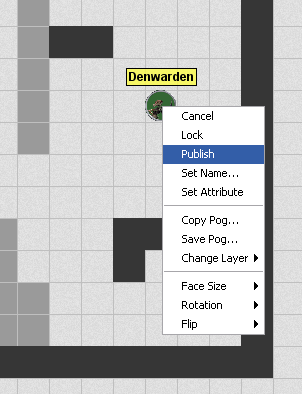
To get to the private map, either go to Map – Edit Private Map, or simply hit Ctrl+F.  You’ll note that the public map now appears in a shaded-out form, while the parts that are hidden from the players are in full color.  You can now edit this map as you would the main map (add or remove items, move them around, draw on the map, etc.).  To reveal something to the players, you simply need to publish it.  To publish an individual item, such as a monster or a treasure chest or a single section of wall, you can left click on the item you want to reveal and click Publish.

Publishing the Denwarden

Alternatively, you can use the mass publisher tool.  This tool can be found on the toolbar at the top of the screen (and can be turned on by pressing Ctrl+9):Publish Tool

The publish tool will let you drag a box around areas of the map that you want to publish, and they will all appear at once.  This is also the way to go when you are getting your map set up for your players – you can start with your complete, revealed map and then selectively use the publish tool to move some items to the private map.  So, when you’re on the private map the publish tools moves items to the public map, and when you’re on the public map it moves things to the private map.  It toggles their public/private status.

There’s one other important point to understand about the public and private maps – they are separate map files in Gametable.  I learned this lesson the hard way, before I really understood the private map.  In my earlier post about my map of the first section of the Keep on the Shadowfell, I showed an image of the complete keep (so far):

Keep on the Shadowfell Map 1

I was so proud of myself for setting up this detailed map.  I then moved most of it to the private map (so that it would be ready to go for my players) and saved the map file.  I then cleared off the map and started drawing my map for the outdoor kobold ambush.  When working on that map, I started moving things to the private map and realized that all of the private items from the map of the keep were there, which I obviously didn’t want outdoors, so I cleared it all off the private map.

Imagine my chagrin when I later opened what I thought was the complete map of the keep that I had drawn, only to discover that it only contained the small section that I wanted to be revealed to the players when they first entered:

Keep on the Shadowfell - Revealed

Crap!  The private map was completely empty.  It turns out that I had to save it as a totally separate file and then load that file when I had toggled my view to the private map view.  So, here is how I set up map files now:

  • Start by saving a new map file as “NameOfMap_Complete.grm”
  • Go to Map – Clear Map
  • Build the new map, with everything revealed
  • Save the map
  • Go to the private map (Ctrl+F)
  • Save this map as “NameOfMap_Private.grm”
  • If there’s some private stuff on here from a previous map, go to Map – Clear Map
  • Toggle back to the public map and start unpublishing whatever you want to hide using either the Publish tool or by left clicking on each item and choosing Unpublish (for finer control)
  • Toggle back to the private map, and you’ll see your unpublished items
  • Once you have everything set the way you want it, save the private map as “NameOfMap_Private.grm” (you’ve already set it up under this name) and save the public map as “NameOfMap_Public.grm”
  • When you’re ready to use this map, you’ll need to toggle to the public map view and load “NameOfMap_Public.grm,” then toggle to the private map view and load “NameOfMap_Private.grm”

So, remember that you’re actually editing two different maps, one public and one private, and you’ll be all right.  Once you understand how this tool works, it’s fantastically useful.  I love being able to set up my entire map in advance and then reveal little bits at a time.  If you set up a whole dungeon level this way, you can simply save the public map and private map as they exist at the end of your session (with the player characters saved wherever they happen to be standing and everything) and pick up right where you left off at the last session.  This is one area where the online game has some advantages over the in-person game!

Also, I’ve saved the public, private and complete versions of my maps on the Downloads page, so you can see this in action with maps that are ready to use.  I’d love to hear any comments you have regarding ways to improve this process, experiences you’ve had with this type of map online or in real life, etc.

First map in Gametable – game on!

I haven’t posted in a couple of days, but that doesn’t mean I haven’t been working on my online D&D game!  Our group is tentatively scheduled to meet online tomorrow (as I post this) for the first time.  We plan to try connecting to one another with Gametable and Skype and maybe, if the technology works out okay, try to get some gaming in.

I don’t have much of an audience for this blog (yet), but I could see my players checking it out from time to time.  This is interesting because I really want to share the work I’ve done so far, but I don’t want to spoil any surprises for the players.  Since it’s unlikely that my friends will be checking this before we play – and because I’m just anxious to share what I’ve learned – some lessons are below.

First of all, I should point out that I’m using a published D&D adventure (The Keep on the Shadowfell) for this first game.  I’m an inexperienced Dungeon Master, and my more knowledgeable brethren have told me to stick with pre-published adventures, at least at first.  This means that I can build maps in advance using Gametable.  I’ll jump to the punch line and show you the finished product (at least, finished so far):

Keep on Shadowfell Map 1

My first detailed map in Gametable, ready for adventure!

So, what’s all this?  It’s the first five areas of the Keep on the Shadowfell, fully revealed.  I used a few pre-packaged items and a whole bunch of items that I’ve created myself, so let me share with you a little bit about what I’ve done.

The basic building block of the dungeon is the dungeon wall.  Gametable comes with four walls – short (2 square) and long (4 square) horizontal and vertical walls.  These are easy to use for the basic dungeon layout.  It also comes with a bunch of pogs – that is, minis to use for characters and monsters.  I’ve used their Goblin mini (quite liberally) and one of their character minis (for one of my player characters).

Long vertical wall Long horizontal wall Short vertical wall Short horizontal wall

Above are the four dungeon wall graphics that come with Gametable; below are the monster and player pogs I’m using that came with the program:

Goblin pog

Goblin

Skeleton pog

Skeleton

Skeleton Lord pog

Skeleton Lord

Female character

Female character

Male character

Male character

Now, if you look at my map graphic, you’ll notice a whole lot of other things on there.  Everything aside from the stuff I just listed is something I made – usually using images I found online, but occasionally using my own skills of an artist.  My wife Barbara is the one who usually uses Photoshop Elements, but for this project I’ve had to get at least a little bit familiar with the program.  (By the way, if you own any of the images I’ve used and would like me to take them down, just let me know).

If you’re going to make graphics using Photoshop Elements for something like Gametable, you’re probably going to want them on a transparent background.  That way, if your new item (such as a treasure chest, a table, a stairway, etc.) doesn’t take up every pixel of its square, the pixels around it will match the dungeon background or the other elements you’ve put it on top of.  That’s a good thing.  The best way I’ve found to get a transparent background is to start with a new file, specifying that you want it to be transparent.

New Photoshop File

Note that the Transparent box at the bottom is checked

This will give you a file with a gray and white checkerboard background – that’s Photoshop’s indication that the background is transparent.  I don’t know of a way to do this in regular old MS Paint, so I’ve migrated to Photoshop Elements.

To turn an image online into a useful Gametable element, start by copying the image into Photoshop Elements.  You can do this by simply clicking on the image, dragging it down to Photoshop in your taskbar, waiting for the Photoshop window to open, and then releasing the image inside of Photoshop.  For instance, I need to get an image of a zombie (a monster my players will be encountering soon), so I’ll begin by searching for promising images using Google.  Here’s one that I like, from a blog called Great White Snark (this is actually a picture of a cake!):

Zombie large

I copied this to my clipboard, then went into Photoshop Elements and selected File – New – Image from clipboard.  Now I have the image open in Photoshop exactly as you see it above.  I don’t want the whole thing for my zombie mini – specifically, I don’t want the white walls in the background, nor do I want to see the edge of the table that the cake is sitting on.  So, I use the Magnetic Lasso tool to highlight just the parts of the image that I want (yes, this can be very painstaking) and then go to Edit – Copy.  Now that just the zombie itself is on my clipboard, I create a new blank file with a transparent background as described above and paste my zombie image into that.

Zombie2

Finally, I need to get my zombie image to the size that I want.  I described in an earlier post a program called TokenTool that helps you generate pogs like those that come with Gametable – round, with some kind of border encircling them.  Those are fine, but I’ve discovered that I actually prefer my minis to be like little statues with transparent backgrounds rather than filled-in circles.  This way, if they ever end up on top of each other, you can still see some of the mini that’s hidden behind the other.  Also, I try to make them square so that I can anticipate how they’ll look.  Finally, I’m starting to feel like I want my minis to be a little bit smaller than the full size of the square, just so that they don’t overlap with the edge of a wall or anything like that.

I’ll start by making the image a square.  To do that, I want to pad the canvas size in the horizontal direction so that it matches the vertical direction.  I go to Image – Resize – Canvas Size, and I see that my image is currently 333 pixels by 489 pixels.  I want some extra space around the mini, so I’ll resize to 525 pixels by 525 pixels (the canvas, remember, not the image), and I’m left with this:

Zombie3

Now all that’s left to do is to shrink this down to the size of a mini for Gametable – 64 by 64 pixels (if it were a large creature, it would be 128 by 128 pixels, and so on for bigger sizes).  I go to Image – Resize – Image Size (as opposed to my earlier Canvas Size) and choose 64 by 64 pixels.  With that, I have my finished zombie mini (note that Gametable uses PNG files for its images, not JPGs):

Zombie Mini

To make the other items you see on the map, I used pretty much the same procedure.  This includes crates, chests, three different tables, plank bridges and a torture rack, all of which are below:

Crate mini

Crate

Chest mini

Chest

Small table

Small table

Tall table

Tall table

Long table

Long table

Plank bridge

Plank bridge

Torture Rack

Torture Rack

There were a few items that I drew myself in Photoshop.  The biggest pain in the butt was actually the stairs, because I wanted them to be open rectangles that showed the dungeon background through them, rather than filled-in rectangles (which Photoshop draws by default).  In Paint this is an easy change to make, but in Photoshop it’s a huge pain.  I ended up using this article from About.com in order to make the stairs work, but boy, what a hassle!  They did turn out looking great, but SO MANY LAYERS!  I used a more freehand approach to draw the curtain, which I end up changing within Gametable so that it has a face size of 2 squares (with just 1 square, it sits in the middle of the square – I wanted it to go across the border of the squares).  The pillar was easy (just a gray circle), and the prison bars were also simple (a few gray squares copied over a few times – also changed within Gametable to have a 2 square face size).  The bed was a little bit trickier – I used the wood from the plank bridge as the headboard and then some rounded rectangles for the bed itself and the pillow.  The bedspread needed texture – a flat color looked awful – so I picked one from within Photoshop.  I freely admit that my fire pit looks like a pizza – I guess I should have searched for a good image of that online, but oh well!  And the iron maiden’s fancy artwork is all me, baby.  Yes, I am a crappy artist, but it kind of looks like an overhead view of an iron maiden, doesn’t it?  Kind of?  A little?

Stairs

Stairs

Curtain

Curtain

Pillar

Pillar

Prison bars

Prison bars

Bed

Bed

Fire pit

Fire pit

Iron Maiden

Iron Maiden

I also created a couple of custom monster and character minis – I’ll probably need to make a few more characters before tomorrow night’s session, for the rest of my players.

With that, I’ll call it a day.  I’ve discovered several more features of Gametable, such as how to hide areas and monsters from your players until the players encounter them, but I’ll save those lessons for another day.  If you’re running your own games in Gametable or similar software and you’d like to use any of the graphics I’ve created, please feel free – I hope I can save you some trouble!

Success with networking

As I mentioned in my last post, I first thought that OpenRPG would be the tool that I would use to run my online D&D game, but then discovered Gametable, which I absolutely loved.  The only problem with Gametable is that I couldn’t connect my wife Barbara’s computer to mine with it, which I could easily do with OpenRPG.

Fortunately, one of the players in the game, Zach, is a computer pro and was able to help me set things up so that I could host a game that both Zach and Barbara could connect to.  (We can presumably connect more people, too, though we haven’t tried yet.)  Let me share my new knowledge with you.

First, I’ll say a few words about connecting to your players via OpenRPG (since I never addressed this in my earlier posts).  In this program, you start by connecting to one of the servers out there for OpenRPG (you could also run your own server, but that’s beyond my needs).

OpenRPG Server Menu

To start networking, go to Game Server - Browse Servers

One you’re browsing the servers, you’ll want to pick one and join its Lobby. I’ve tried creating a room before joining a lobby, but for some reason it didn’t seem to work properly.

OpenRPG Join a Lobby

Double click a server on the left, then click on the Lobby on the right

Once you’re in a server’s lobby, you can create the room for your game at the bottom right corner of this window.  Give it a name, and then a password if you wish (this keeps other people from taking over the room, though I’m not sure I’d be too worried about that) and an admin password – then click Create Room.

After that, you need to tell your players what server you’re on and what room you’re in (and the room password, if you’ve assigned one).  They’ll need to go to the Lobby, then click on your room and “Join Room.”  They’ll show up on the Player List in your room, and you can right click on their names to assign them the role of Player, which will let them interact with their minis.  By default they will be Lurkers, who can’t affect the game.  Only the GM (the person who started the room, or anyone who is assigned the GM role) can do things like changing the background to bring up the next map.

So, connecting to other players via OpenRPG is easy.  With Gametable, it could be a little bit harder.  I’ll lay out my experience, though yours may vary depending on your setup.  I’m using a Dell laptop running Windows XP.  Barbara has a Dell desktop, also running XP.  We have cable internet service, which comes out of the wall and into our cable modem, then into a Netgear wireless router.  From there, an Ethernet cable connects to Barbara’s computer, while my laptop connects to our secured network wirelessly.

The reason I go into all of this detail is that I had to mess with some settings to make everything work properly.  First, let me explain the steps within Gametable to start an online game.  If you’re hosting, start by going to the Network menu and selecting Host.

Gametable Network Menu

To host a game, go to Network, then Host.

From here, you’ll be prompted to enter your name, your character’s name, a password (entirely optional – I don’t think I’ll bother) and a port (I use the default of 6812).

Gametable Host MenuEasy enough.  For your players to connect to your game once you’re hosting it, they’ll go to the Network menu and choose Join, where they’ll be prompted with this screen:

Gametable Join MenuYes, it’s the same as the Host screen, except it’s asking for the host address.  As the host, you’ll have to tell your players what your IP address is.  The simplest way to find this is by going to http://whatismyipaddress.com/ (pretty obvious, I know).  It’s entirely possible that this is all that you’ll need – your players will enter the IP address you tell them, they’ll join your game, and you’re off and running.

I had two issues to deal with.  First, and I’m not absolutely certain that I had to do this but I thought I should mention it, I opened port 6812 in the Windows Firewall.  This involved going to the Control Panel, opening Windows Firewall, clicking the Exceptions tab, then the Add Port button.  I named the new port Gametable and had it open port 6812.  Maybe that port was already open, maybe not, but it definitely is now.

Firewall SettingsNext, I had to mess with some settings on my router.  This may not apply to most of you, but in my case I had two router issues to deal with.  First, since there are multiple devices on this IP address (including my computer and Barbara’s computer), I had to make sure that anyone connecting to this IP address would be routed to my computer.  Second, I needed to figure out how to have Barbara’s computer connect to mine, since they have the same external IP address.

I’ll take the second issue first, since it helped me address the first one.  It turns out that my computer has both an external IP address and an internal IP address.  The external IP address is the one other computers on the internet would use to connect to me, while the internal IP address is what the router assigns to my particular computer among the devices in the house.  To get the internal IP address, I went to the Run menu in Windows and typed cmd to bring up a command prompt (ah, the good old days of DOS – such memories).  From that prompt, I typed ipconfig.  This brought up information showing me, among other things, my internal IP address.

Running IPConfig

The steps I used to get to my internal IP address - click to enlarge

Now that I know my internal IP address (192.168.1.5), I could enter this into Barbara’s Gametable program to connect to my computer – success!

In order to get computers on the internet to connect to my computer, I needed to set things up so that anyone connecting to my external IP address would be forwarded to my computer and not Barbara’s, which meant that I needed to change some router settings.  To get to the router settings, I went to 192.168.1.1 in my browser and entered my login and password information for the router (I’m very glad that I remembered to write this down when I set up the router!).  From the main router settings menu, I clicked on “Port Forwarding / Port Triggering.”  On the next screen, I clicked Add Custom Service, then set things up for Gametable with the appropriate port (6812) and internal IP address to forward that port to (192.168.1.5).  Voila!

Router SettingsThis might sound like a lot of effort, but honestly, once I knew what I needed to do it hardly took any time at all.  And the upshot is that now I can use Gametable to host games!

Since it looks like I’ll  be abandoning OpenRPG before I even got a chance to really use it (which, I’ll admit, makes me feel a little bit sad somehow), I’ll shift to talking more about Gametable in future posts.  It’s extremely user friendly, so I doubt if I’ll need as much detail on the basics as I provided for OpenRPG.  My friend Zach, who helped me with the networking issues, got a chance to try out Gametable and seemed impressed.  I think this is going to be a winner!

Program promiscuity

No sooner did I finish my first detailed post about OpenRPG than I discovered some more awesome, free tools for playing D&D online.  I’m still not sure which tools I plan to use yet, but I thought I would share some information about what I’ve found.  I should point out that I discovered these tools by browsing some blogs at the amazing RPG Bloggers site.  If I end up making this blog a long-term project, I’d definitely like to be a member of that group!

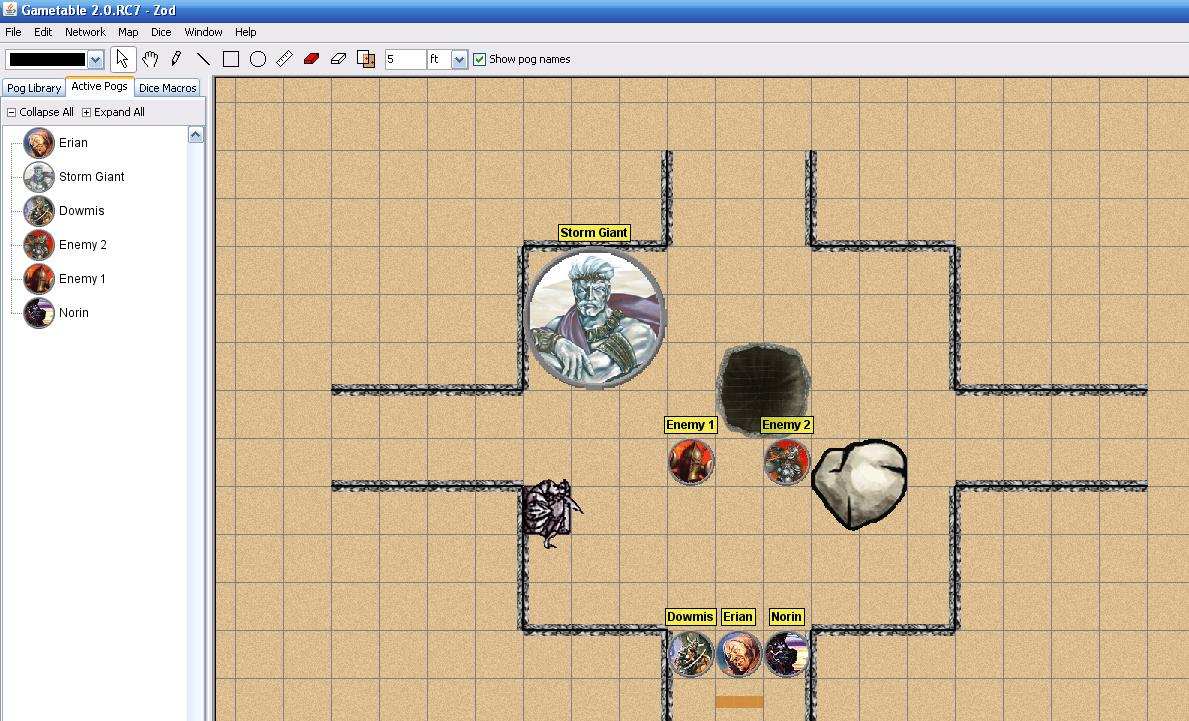
The first new program I discovered is Gametable.  This program basically has the map and dice roller tools of OpenRPG, except better.  With OpenRPG, as far as I’ve been able to tell, you have to do all of your map prep work before you play – you have to have the background images properly formatted with all of your grid lines in place, with the file loaded onto a public web site, etc.

Gametable goes in another, much more flexible direction.  When you open up Gametable, the map takes up most of the screen, and by default it looks like the tan-colored battle maps that those of us who play D&D with pen and paper are used to (though you can change the color).  The coolest part is that you can easily draw maps on the fly, just as you would around a real table.  The program has basic tools for drawing lines and bringing in walls, plus pre-made areas that you can just drag onto the board and run with.  It has pre-made battle features like rocks and trees and pits that you can just drag onto the screen, and they look great.  It also comes pre-loaded with a bunch of “pogs” or minis of various sizes.  Super-simple, with no setup required.  You could have your players log in and start with a blank board, and then you could draw the battle map on the fly, just as you would on a real battle mat.  Outstanding!

Gametable example

An example Gametable session, which took maybe 5 minutes to assemble

I’ve discovered only one quibble with Gametable so far – connecting to other players has been harder for me than it was with OpenRPG.  With OpenRPG, you browse for available servers (of which there are plenty), create a room for your game, and then have your players go to that same room from their computers.  With Gametable, you’re hosting the game directly on your computer, which means that other players have to enter your IP address to connect.  This might be easy in most cases, but my only test computer is also here in the house, running off the same router – which means it has the same IP address.  I haven’t been able to connect two computers yet – but I won’t give up!  This program just looks so good and seems so easy to use, I can’t give up on it without giving it a good chance.

The second amazing program I discovered is not actually a program to PLAY D&D online, but it’s a fantastic program for a DM to build their game and run it in the background.  It’s called Masterplan.  While OpenRPG and Gametable are flexible map programs for playing any RPG, Masterplan is a Dungeons and Dragons fourth edition tool, period.  First off, the game is fully integrated with other official Wizards of the Coast D&D tools.  When you open it up for the first time, it asks you if you have a D&D Insider (D&DI) subscription (I’m glad that I do!), and if you log in to D&DI it will then download all of the monsters and items that are in the D&D Compendium.  For me, that was a little over 9,600 items, which took about 20 minutes to download.  Unlike OpenRPG or Gametable, Masterplan comes with a fantastic, detailed user manual with tons of screenshots and examples.  It also has some pre-made adventures, which are great for seeing the program in action.

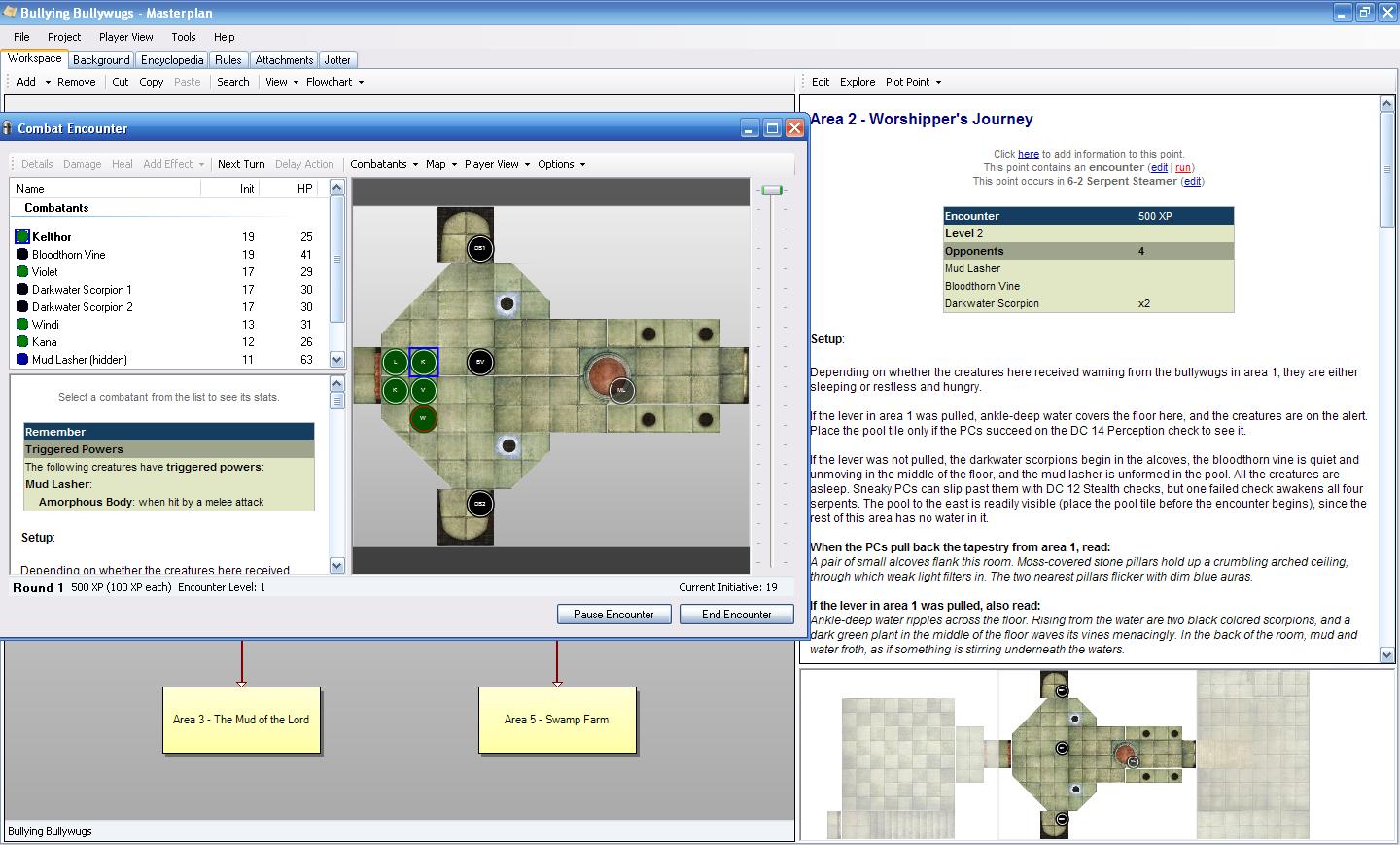
Basically, Masterplan lets you plan adventures.  It centers around a flowchart view of plot points for your campaign.  For instance, you might start with a simple “you all meet in a tavern” plot point, which could lead to either of two different paths depending on what the characters decide to do.  The next step on each path might be a combat encounter.  Masterplan lets you build the map for that encounter using slick Dungeon Tiles that look very cool.  It lets you add whatever enemies you think make sense – or it can help you autobuild a set of enemies to provide whatever level of challenge you want, given the party that will be playing it.  You can import your players’ character files straight out of Character Builder so that Masterplan will know what level the party is, what powers they have, their defenses, their hit points, etc.  Every monster in any published D&D 4e book is here, with easy additions of your custom monsters from Adventure Tools.  You can run the battle within the program, rolling initiative, keeping track of hit points, even tracking ongoing conditions with prompts for end of turn saves.  I’m absolutely blown away.

Masterplan example

A Masterplan screen shot, with a battle running in the foreground and the rest of the features in the background

So, what will I be using?  Well, I haven’t decided yet.  I’m almost certain that I’ll be using Masterplan at some point, certainly whenever I start making my own adventures.  Since I’m running pre-published adventures for now, though, I don’t know that I want to go to the trouble of recreating them within Masterplan.  However, I do think it’s possible that I might make some maps in Masterplan (which, as I said, look awesome) and resize them to a 60-pixel grid to serve as a background within OpenRPG.  If my games end up more free-form, though, I think I’ll have to go with Gametable (assuming I can solve the connectivity issues) just so I can draw maps on the fly.

What do you think?  Do you have any experience with any of these programs?  I’d love to get advice from someone who has used them!

OpenRPG – installation and map basics

When my friends first told me that they were interested in continuing the D&D game that we had begun at a wedding in Florida by playing the game online, we needed to figure out how to make this work.  One of my friends pointed me toward OpenRPG – a free program that creates a virtual tabletop for everyone to “sit” around, see the battle map, chat and roll dice.  Now the trick was figuring out how to make it work.

I’ll begin by noting that I am running OpenRPG on my Dell laptop, which uses Windows XP.  It’s a machine that I bought around 2005, so it certainly doesn’t have the latest bells and whistles, but it has no problem at all running OpenRPG.

You can download OpenRPG at this link.  As I write this, the latest version is 1.8.  The download is somewhat more involved than a typical internet download, in that it start by installing Python (the programming language in which OpenRPG is written) onto your computer.  When you run the program, you will see that it will run in two separate windows – one DOS prompt window for Python and then the OpenRPG program window itself (see below).
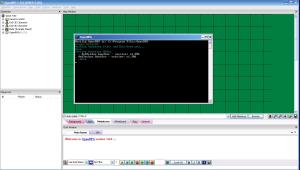
Note the main OpenRPG screen (the background) and the DOS window (foreground)

Note the main OpenRPG screen (the background) and the DOS window (foreground)

There is an online user manual for OpenRPG which does have some useful features, but what I’ll present below are the basics for my use of OpenRPG.  These include some lessons that I had to learn via trial and error.  I’ll note right now that I’m only focusing on the map for now.  The chat window and the dice roller will be addressed later.  As for such things as character sheets, I don’t plan to use them in my game for the time being.

The map is the real power tool of OpenRPG and what makes it worthwhile for online role playing games.  You’ll note that the map has six tabs beneath it, and you’ll want to ultimately use all of these to set up your virtual tabletop for your game.

  • Background: This is where you set up what you would generally think of as “the map” – the walls of your dungeon, the trees in your field, the various features of the area where your player characters (PCs) will do battle.
  • Grid: This is where you specify the size of the underlying grid of the map and what it will look like to your players.
  • Miniatures: Here’s where you put the virtual equivalent of miniature figurines (which I’ll still call “minis” in this blog) onto the battlefield, representing PCs, NPCs (non-player characters) and monsters.
  • Whiteboard: This lets you write on the map on the fly – I’m not very experienced with this yet.
  • Fog: This lets you hide and then reveal parts of the map as your players explore
  • General: Set the size of the overall map itself (in pixels), or reset the map to its default settings.

I’d suggest starting with the Grid tab and going from there.  While your game may vary, I’m playing Dungeons and Dragons fourth edition, and I use a square-grid map with minis that (assuming they’re Medium-sized) will only occupy one square at a time.  This means that I use a Rectangular rather than Hexagonal or Isometric grid, and I use the Snap option (which makes each mini be in one square or another, not spread across squares).  I also do like to see the grid clearly, so I use Solid Lines rather than Dotted Lines or No Lines, and I like them colored black (but feel free to use gray or whatever makes sense for your grid).  Finally, I like the grid boxes to be 60 pixels by 60 pixels.  This will give you boxes that are big enough to see the minis in them clearly.  Now, that takes up a lot of space if you have a sprawling battle map, so you’ll probably need to scroll around the map when you’re playing (or zoom out).  Personally, I think that’s no big deal.

My OpenRPG grid settings

These are the settings that I use for my grid in OpenRPG

Next up: Background.  This is where the action really is.  The background is where you draw the walls of your cavern, the stairs that your characters can use, terrain features, buildings, doors, etc.  That is, everything you would draw yourself on an erasable battle map or build with Dungeon Tiles.  In order to do this, you need to develop your skills of an artist.

I freely admit that I’m a lousy artist.  I was a great student in school, but not so much in art class.  However, I LOVE gaming, and I’ve found inspiration to do some art for online DMing.  Still, I’m keeping my map background art very simple for now.  If you’re playing around on your desktop (not connected to a server for playing with other players online), you can load up an image file to use as your background by choosing “Image” from the dropdown menu on the Background tab, then clicking Browse and selecting the image file you want to use.  However, if you want to use the image for online games, you’ll need to get that image file onto the internet somewhere so that your players can access it, too, and then enter its URL into the Background tab.  I’m going to be using my blog for hosting my files, but something like Photobucket or Picasa should work just fine, too.  And if you want to use any of the background images that are on my blog, feel free to link to them in your game!

So, how do you go about creating a good background?  Well, I’ve decided to start with the grid.  I wanted a blank image file with a grid of 60 by 60 pixel squares on it (to match the actual grid in the game), and then I would fill in squares that are walls and leave blank the squares that are floors.  Building the 60-pixel grid image file was surprisingly a pain, but I managed it – and now you don’t have to!  Feel free to start with the grids below.  One of them is 16 squares by 16 squares (not all that big, but probably enough for a single encounter area) and one is 32 by 32 squares (much more useful for putting together something like an entire floor of a dungeon, perhaps, or at least a big chunk of one).  Make sure you click on the grid you want to pull up the full-size version of the file.

Map grid - 16 by 16 squares, 60 pixels each

Map grid - 16 by 16 squares, 60 pixels each

Map Grid - 32 by 32 squares, 60 pixels each

Map Grid - 32 by 32 squares, 60 pixels each

Once you have this grid, you can start filling in squares using something as simple as MS Paint and the paint bucket tool, then save a new version that’s an actual map.  From there, you can add fancier art as you wish – though I freely admit I haven’t done this yet!  It’s all black and white, square walls, featureless corridors, etc.  Better art will come over time!  Below is an example of a grid that has a room roughed in, just to give you an example of what this might look like.  I’ll share actual rooms that I put together as I assemble them over time.
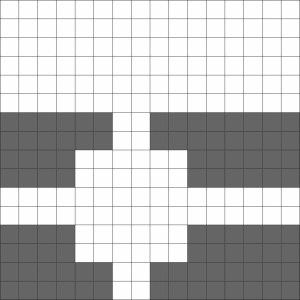
Rough room map

An example of the small grid with a simple room roughed in with gray walls.

Since we’re talking about the background, we should go to the General tab.  There are really two main functions here.  First, we have the Default Map button, which clears away anything you’ve added (backgrounds, grid changes, minis, fog) and lets you start from scratch.  Second, you can set the size of the map.  If you use the 16 by 16 square map, the size will be 961 by 961 pixels.  If you use the big 32 by 32 square map, the size will be 1921 by 1921 pixels.

You’ll note from the image below that I’ve set the map size appropriately for the large grid, and I’ve scrolled to the bottom right corner of the map.  However, you’ll note that while the grid’s background color is white (from the image file), there’s a green border around the edges of the map.

OpenRPG - General Map Settings

These are the General map settings for the large grid. Note the green border along the right and bottom sides of the map.

If you want that green edging to go away, go to the Background tab, select Color from the dropdown menu, click the Color button and pick the color you want.  That will change the color of the Color button itself.  To actually put it into place on the map, you then click the Apply button.

OpenRPG - Background Color

Setting the background color to white, with the necessary dropdowns and buttons circled.

All that remains for me to talk about today is minis.  To create a mini from scratch using MS Paint, I suggest starting with a file that is the right size and filling it in.  Assuming you’re using a 60-pixel grid, I recommend creating minis that are 58 by 58 pixels.  That way, they fit inside the grid squares and do not cover up the borders of the squares.  To do this, go to the Image menu in Paint, then select Attributes, then set the size you want, in pixels.

From here, you’ll be left with a tiny little box to draw in.  I highly recommend zooming in for more accuracy (View – Zoom).  This is the procedure I used to create my first mini – Stick Mini.

Stick Mini

Stick Mini - little, but mighty!

Now, if you’re not a great Paint artist and you want some better-looking minis, the simplest thing to do is to find an image that you like online (assuming that the owner of the image is okay with you using it), copy it to Paint, crop it as you see fit, get it into a square size, and the resize it to 58 by 58 pixels.

Let’s say that you find an image of a kobold that you like.  For instance, I found the image below at a blog called Dice Monkey.

In his current form, this kobold has two problems that keep him from being a good mini: He’s too tall (not a square) and he’s too big (not a mini).  The image dimensions are 240 pixels wide by 327 pixels tall.  To solve the first problem, I grabbed the top of his spear and shifted it down closer to his hand, and I moved the image around until he was at the top of the box.  I then cropped the image (Image – Attributes) to 240 by 240 pixels, leaving me with the picture below.

Short KoboldNow he’s 240 by 240, but I want him to be 58 by 58.  Some math reveals that 58 divided by 240 equals about 24%, so I want to resize the image so that it’s 24% as tall and 24% as wide as it currently is.  To do this, I go to Image – Stretch/Skew and enter 24 for both Vertical and Horizontal.

Kobold resizing

After resizing, I’m left with my finished kobold mini:

Kobold mini

My finished kobold mini, in all of his 58 by 58 pixel glory

You can use the same process to create minis for other monsters, NPCs and even player characters.  However, if you have players who like to get involved with their characters, I highly recommend asking them to create their own minis and sending them to you for use in the game.  It’s way more fun for them to control a character that they created, after all!

That wraps up the map basics.  In future posts, I’ll talk more about the fog of war, creating more detailed backgrounds and more minis, and how to actually USE the stuff you’ve created.  As always, comments are highly encouraged!